Add an employee and set a PIN
At a glance
Section titled “At a glance”- Time: about three minutes.
- Who: a manager who may manage employees. To fill in the pay, you also need the payroll permission.
- Difficulty: easy.
Purpose
Section titled “Purpose”Add a person to blindTimekeeper and give them the PIN they will type at the kiosk. Use it for a new hire. The same form changes an employee you already have.
Ingredients
Section titled “Ingredients”- Permission to manage employees.
- The person's first and last name.
- Optional: an email, an employee code, the position and the location.
- For pay, the type, the amount and the expected work days.
- A PIN of 6 to 12 digits to give to the employee.
Expected result
Section titled “Expected result”The employee is in the list, Active, and the row says Configured for the PIN. They can clock in at a kiosk with the PIN.
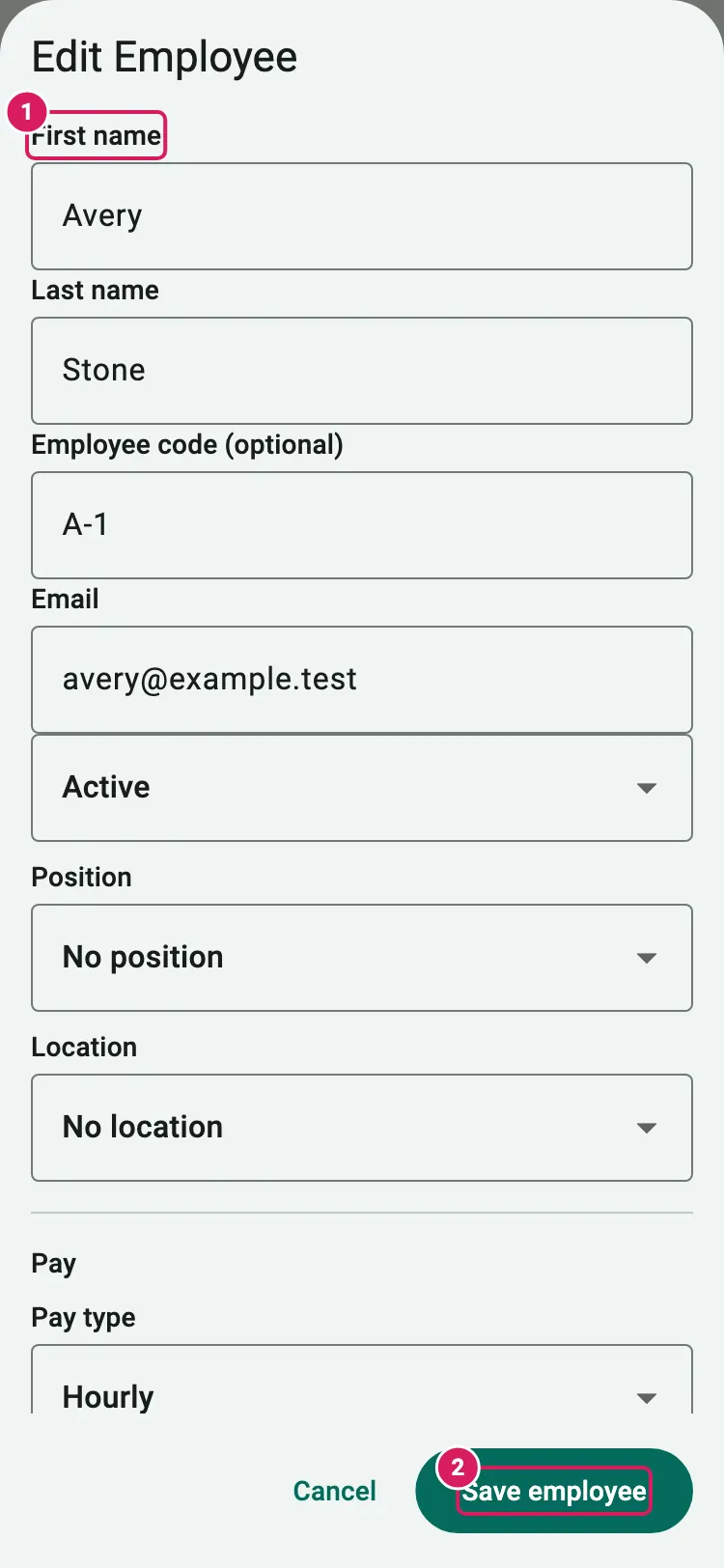
- Open Employee Access in Settings, or Employees, and touch Add Employee.
- Fill in First name and Last name. They are required.
- Optional: Employee code (optional) and Email. An email must contain "@", and a code or an email that another employee already has is refused with "Some information is already in use. Check the fields and try again."
- Choose the Position and the Location. When you have only one active position or location, it is already chosen.
- If you may manage payroll, fill in the Pay section: Pay type (Hourly or Salaried), then Hourly rate or Salary amount (per pay period), and Overtime eligible. For a salaried employee, choose the Expected work days.
- Touch Save employee. A new employee is Active.
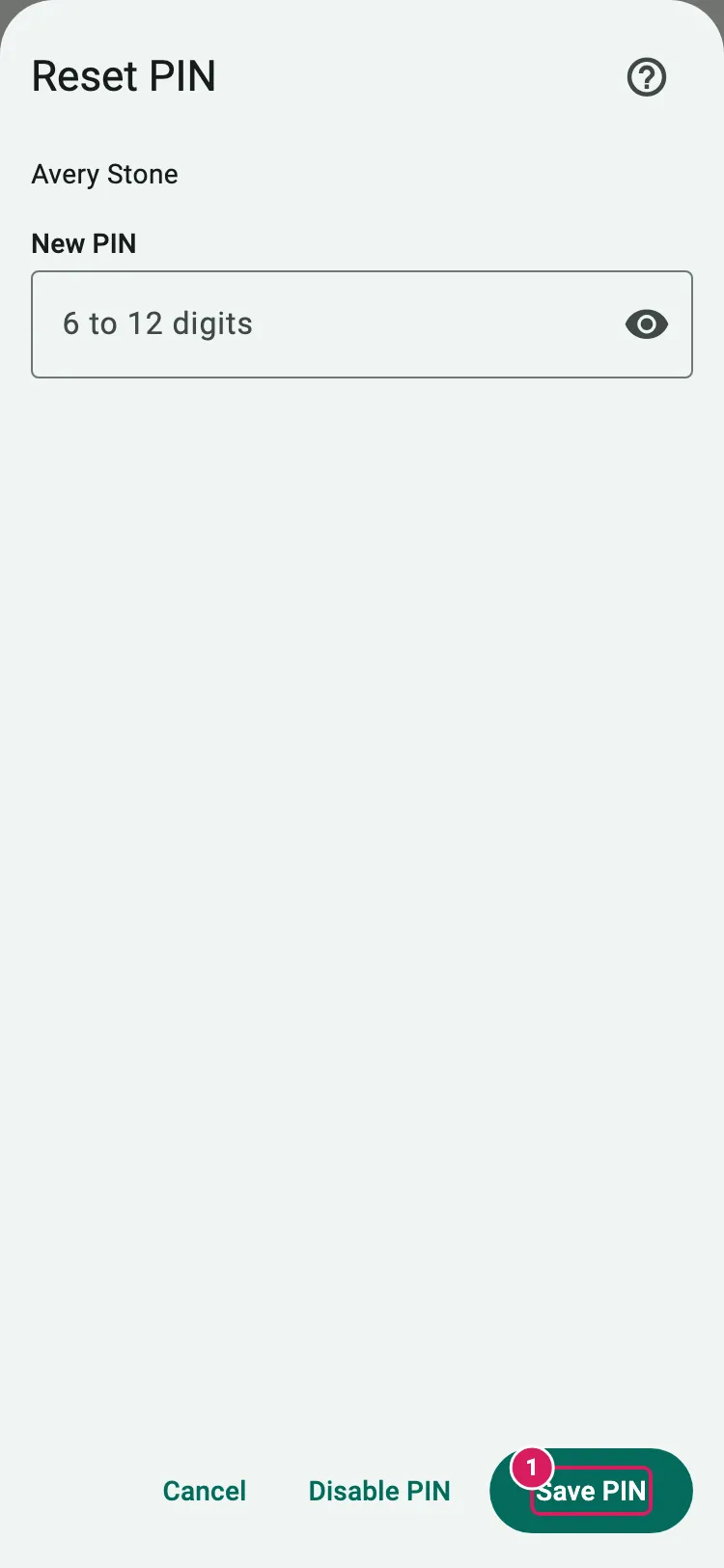
- On the new row, open Set PIN, type the New PIN (6 to 12 digits) and touch Save PIN. The page says "PIN updated."
Check your work
Section titled “Check your work”- The employee is in the list with Active, and Configured appears for the PIN.
- The pay shows on the row: for example "Hourly · $18.50/hr".
- Give the employee the PIN in person. blindTimekeeper does not show it again.