Pair a kiosk
At a glance
Section titled “At a glance”- Time: about five minutes.
- Who: a manager with the tablet in hand.
- Difficulty: easy.
Purpose
Section titled “Purpose”Connect a tablet to your company so employees can punch on it.
Ingredients
Section titled “Ingredients”- Permission to manage kiosks.
- A tablet with the kiosk app and a connection.
- An active location for the kiosk.
Expected result
Section titled “Expected result”The tablet shows the employee list and the kiosk appears in Settings, Kiosks with the badge "Paired / ready".
- In Settings, Kiosks, touch Add kiosk. Enter the Kiosk name, choose the Location and the Employee roster, then touch Save kiosk.
- A window shows a QR code and the same code as text, for example K7QM-4TXR-9BWF, with the time left. The code carries your company, works once and lasts 10 minutes. If the tablet is not next to you, turn on Remote setup: the code then lasts 60 minutes. Use the copy and share buttons to send it, for example by WhatsApp, and Cancel code to end it at once.
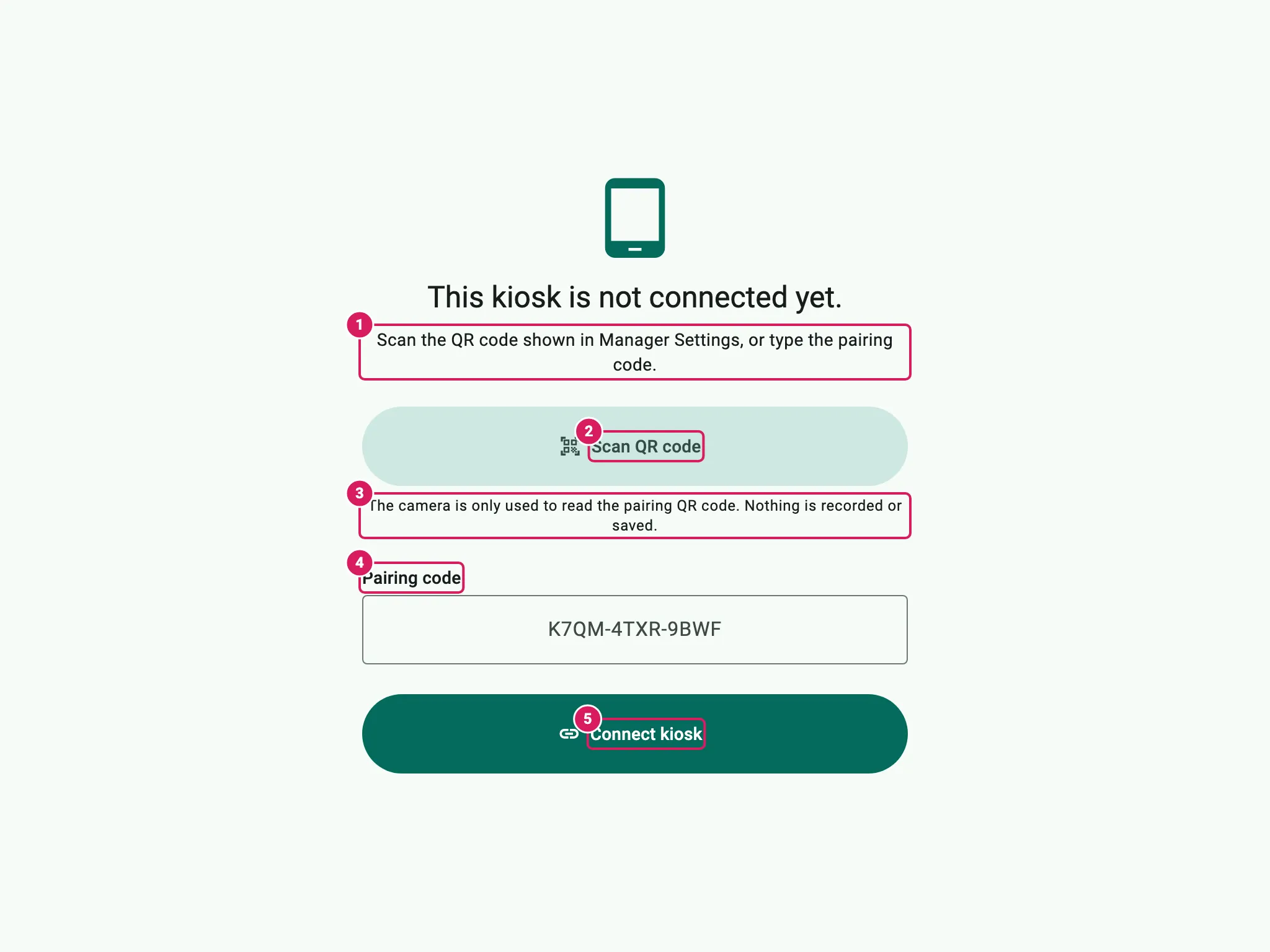
- On the tablet, touch Scan QR code and point the camera at the QR code. The tablet asks once to allow the camera, and uses it only to read the code. Or type the code in Pairing code (capitals and dashes do not matter) and touch Connect kiosk.
- Back on the computer, touch Close pairing code. The kiosk now reads "Paired / ready".
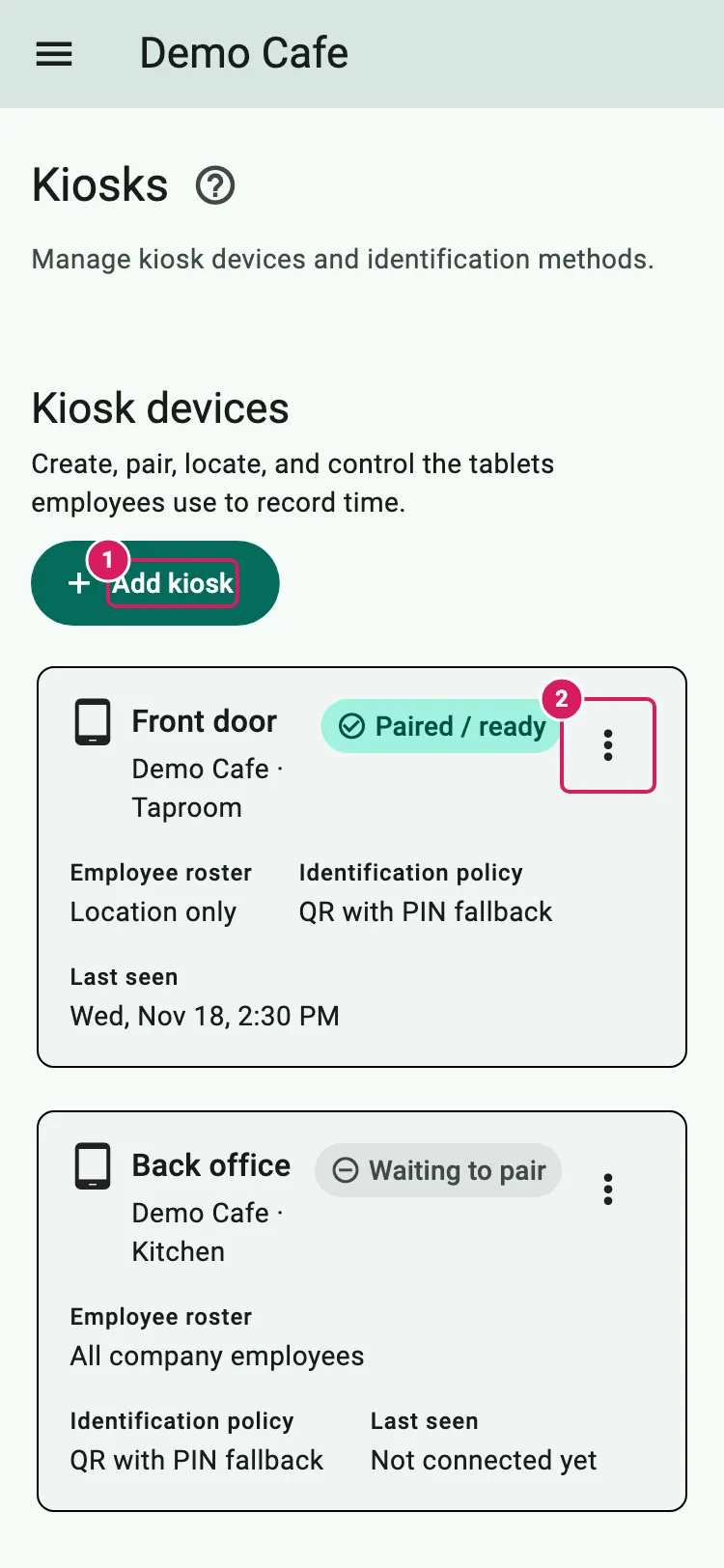
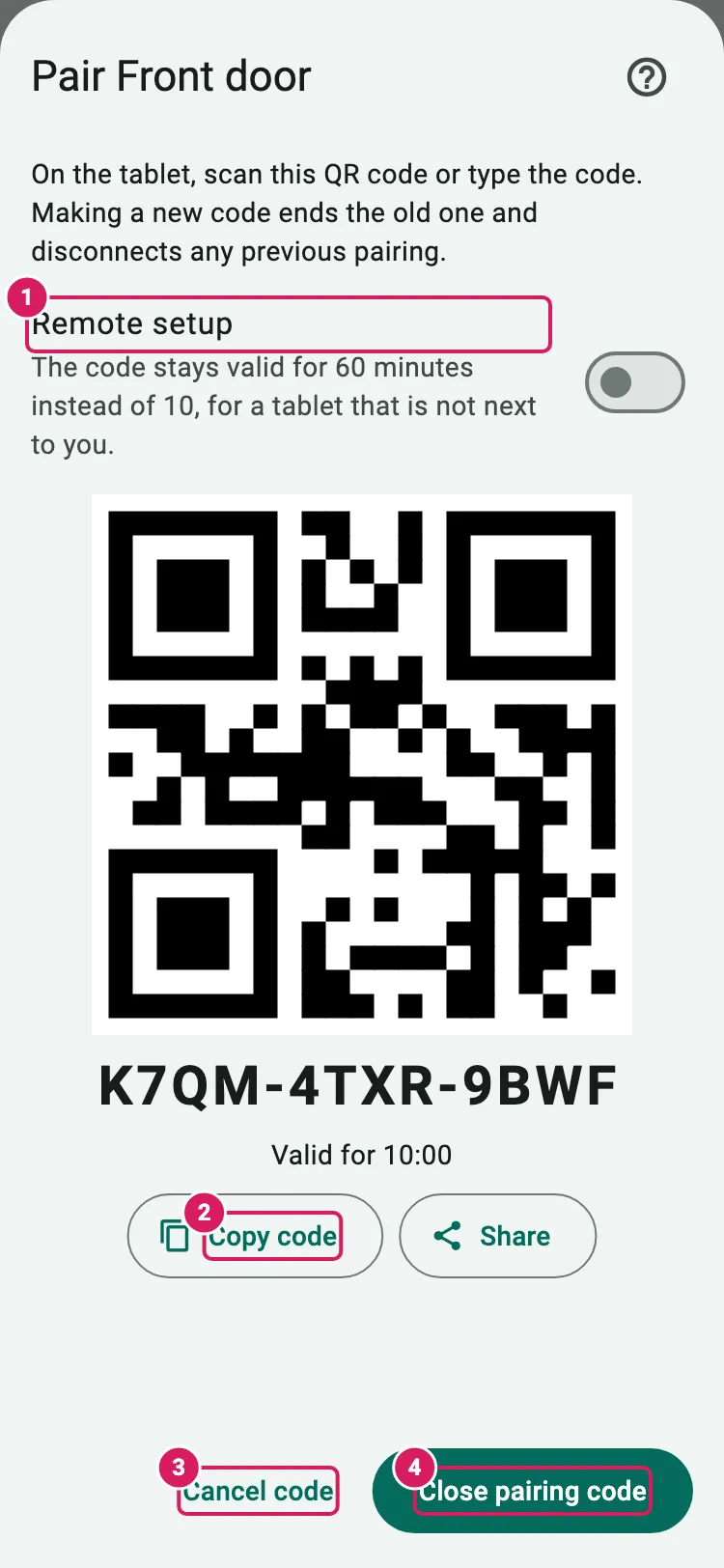
For a kiosk that is already in the list, open Kiosk actions and choose Pair kiosk (when it is waiting to pair) or Re-pair kiosk. A new code disconnects any earlier pairing of that kiosk.
If the code is wrong the tablet says it was not recognized; if the code expired or was already used, ask for a new code. After many wrong codes, pairing is blocked for a few minutes, for your company only. Other companies can still pair.
Check your work
Section titled “Check your work”The kiosk list shows the badge "Paired / ready" and the tablet shows the employee list.
What next
Section titled “What next”- Have each employee punch once while the tablet is online: the offline rule
- The kiosk setup and status screens
- The Kiosks settings