Revoke or re-pair a kiosk
At a glance
Section titled “At a glance”- Time: about three minutes, plus a minute at the tablet.
- Who: a manager who may manage kiosks, with the tablet in hand for the second half.
- Difficulty: easy.
Purpose
Section titled “Purpose”Take a kiosk out of use when its tablet is lost, replaced or given to another place, and connect a tablet to it again. The same new code also repairs a tablet that says it was disconnected.
Ingredients
Section titled “Ingredients”- Permission to manage kiosks.
- The kiosk in Settings, Kiosks, and an active location for it.
- To re-pair: the tablet, with a connection.
Expected result
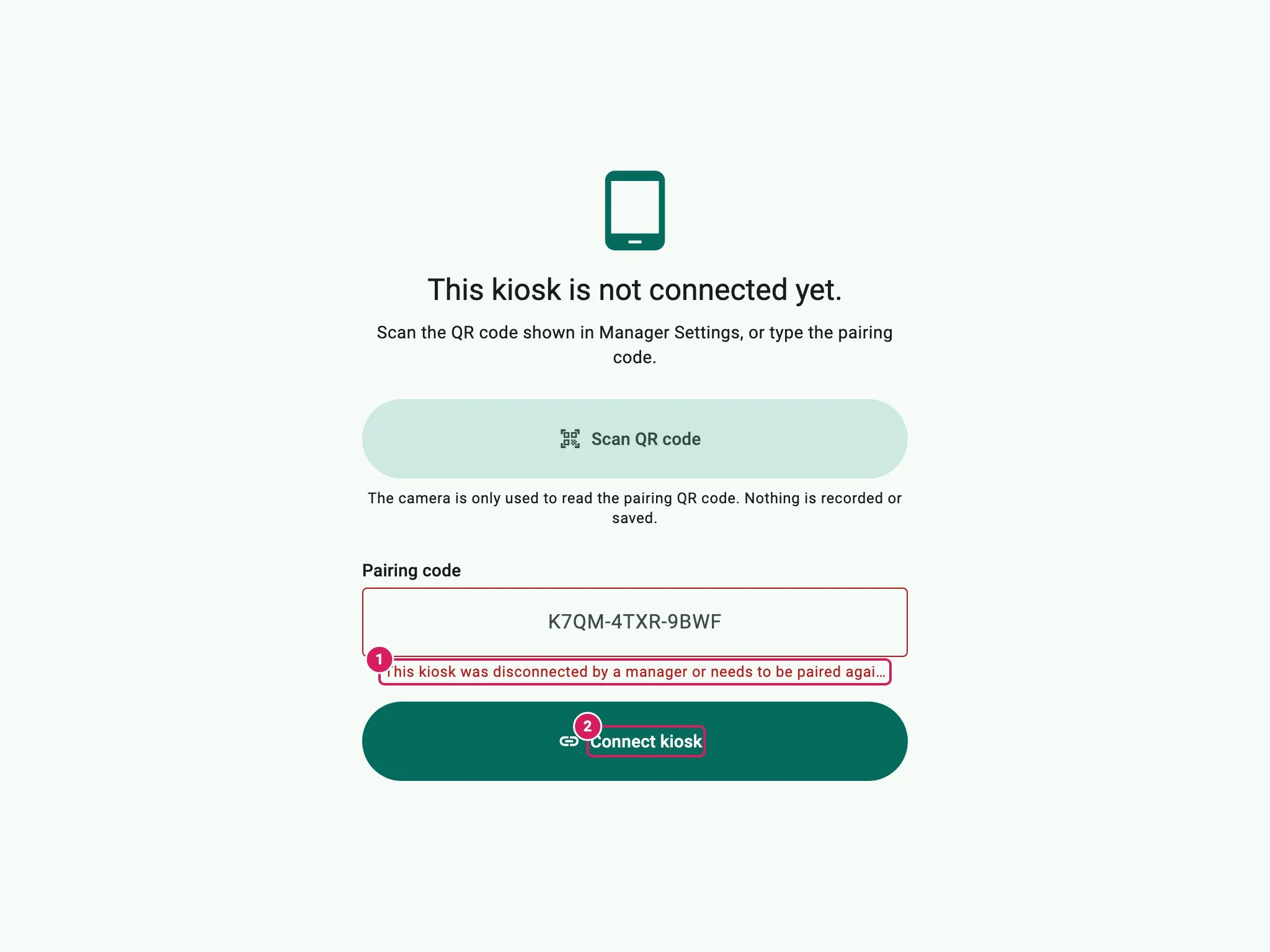
Section titled “Expected result”A revoked kiosk shows the badge Revoked and stops loading employees and recording punches. At its next contact the tablet forgets its pairing and shows the pairing screen with the note "This kiosk was disconnected by a manager or needs to be paired again. Enter a new pairing code." After a re-pair the kiosk shows Paired / ready again.
- In Settings, Kiosks, find the kiosk and open Kiosk actions, then choose Revoke kiosk.
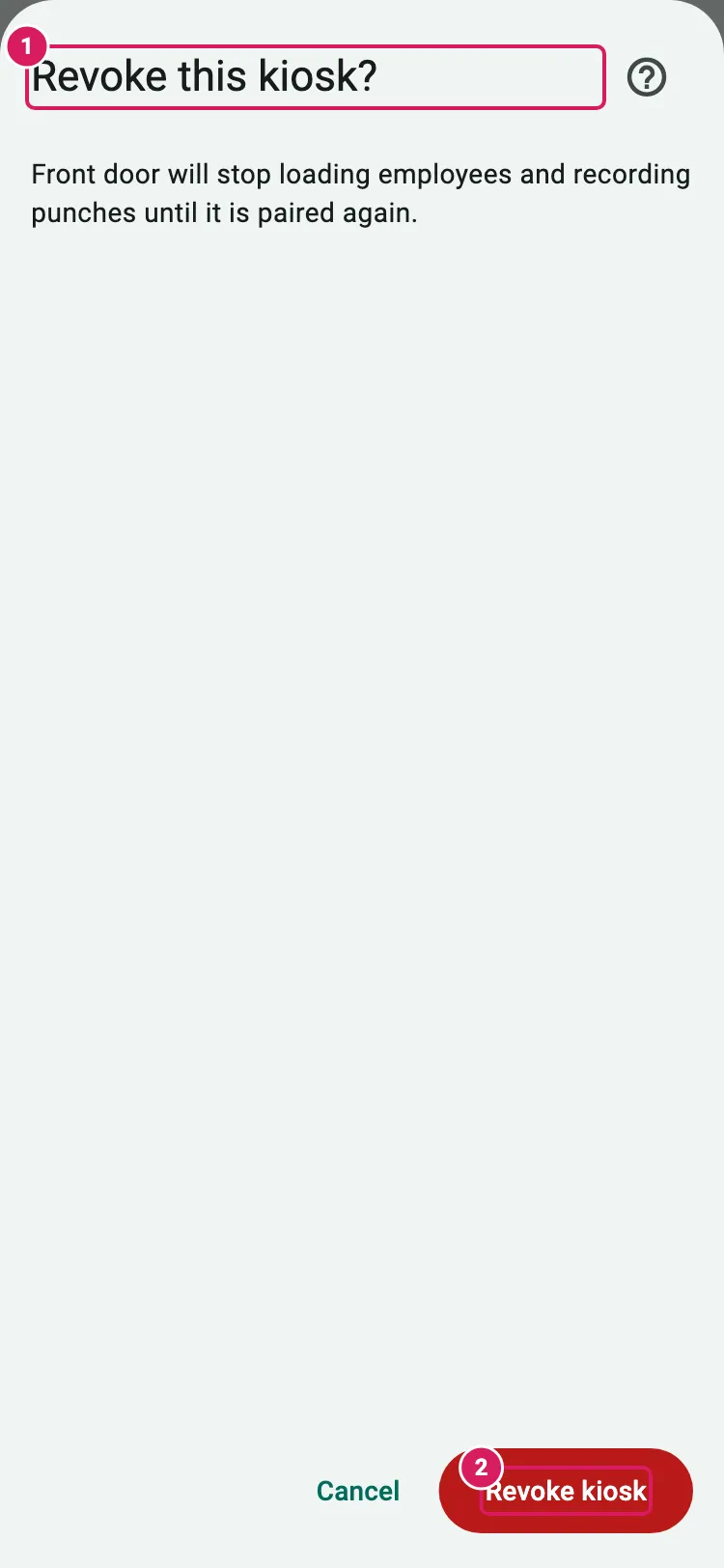
- The window asks "Revoke this kiosk?" and says that the kiosk will stop loading employees and recording punches until it is paired again. Touch Revoke kiosk. The badge changes to Revoked, and the action is no longer offered for that kiosk.
- When the tablet is ready, open Kiosk actions on the same kiosk and choose Re-pair kiosk. A window shows a QR code, the same code as text and when it expires.
- On the tablet, touch Scan QR code and point the camera at the code, or type the code in Pairing code and touch Connect kiosk.
- Back on the computer, touch Close pairing code.
Check your work
Section titled “Check your work”- The kiosk reads Paired / ready.
- The tablet shows the employee list.
- If the tablet had saved punches while it was cut off, open Review, Offline punches: they are there, each with the reason "The tablet was re-paired or its trust changed".