Sign in
At a glance
Section titled “At a glance”Sign in is the first screen of blindTimekeeper on the web, for managers, and on the phone, for employees. You write your email and your password. What opens next depends on where you signed in.
The screen
Section titled “The screen”The screen has a title with the product name, the email field, the password field and one button. The same form is used on the web and on the phone.
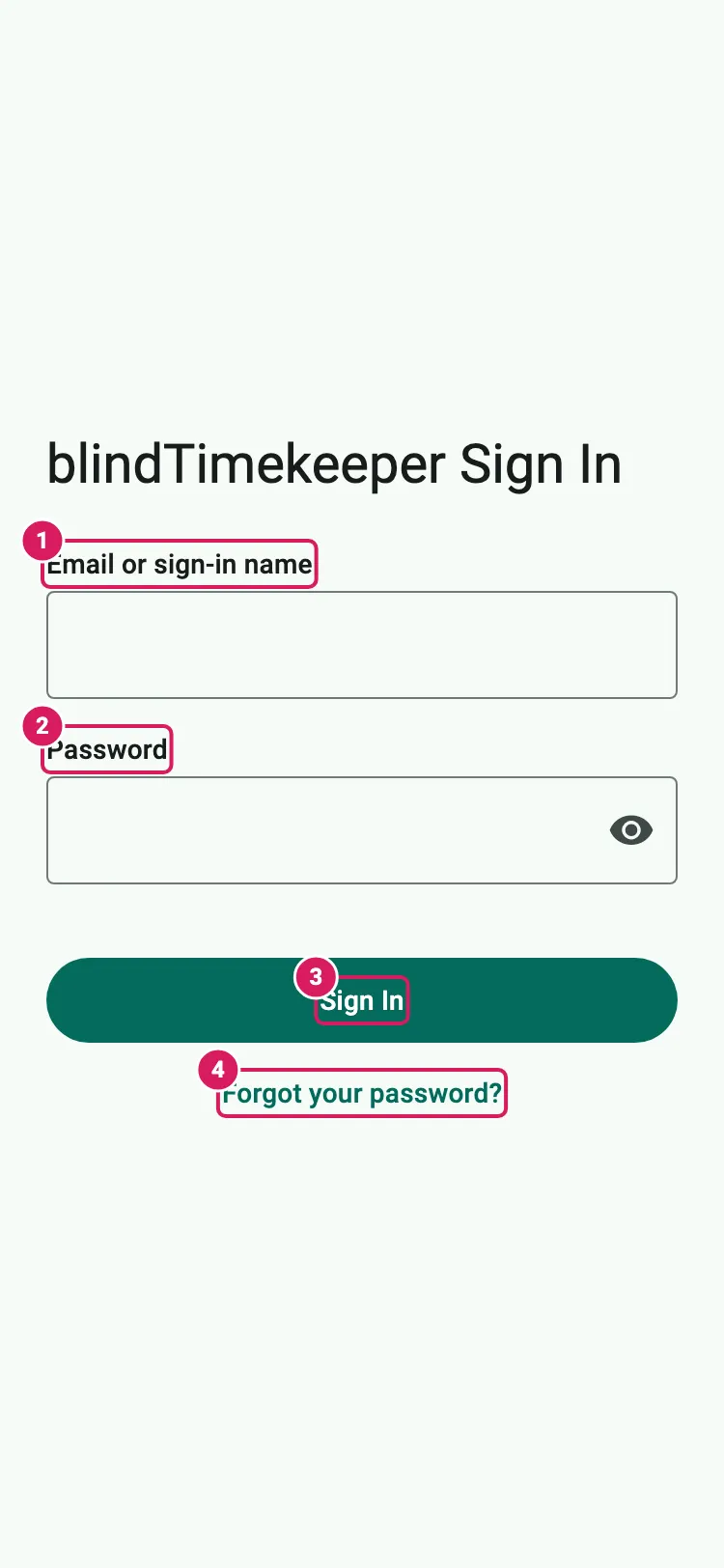
Parts of the screen
Section titled “Parts of the screen”- Email or sign-in name: the email of your account, or the sign-in name of a person who has no email.
- Password: your password. The eye icon shows or hides it (Show password, Hide password).
- Sign In: signs you in. The Enter key does the same from either field.
- Forgot your password?: opens a window where you write your email to get a link to choose a new password.
Options and filters
Section titled “Options and filters”None.
Actions
Section titled “Actions”- Write your email and your password and touch Sign In. The button shows a spinner while it works.
- On the web, a manager who signs in opens the manager screens, with the tabs the permissions allow.
- On the phone, an employee who signs in opens the employee app.
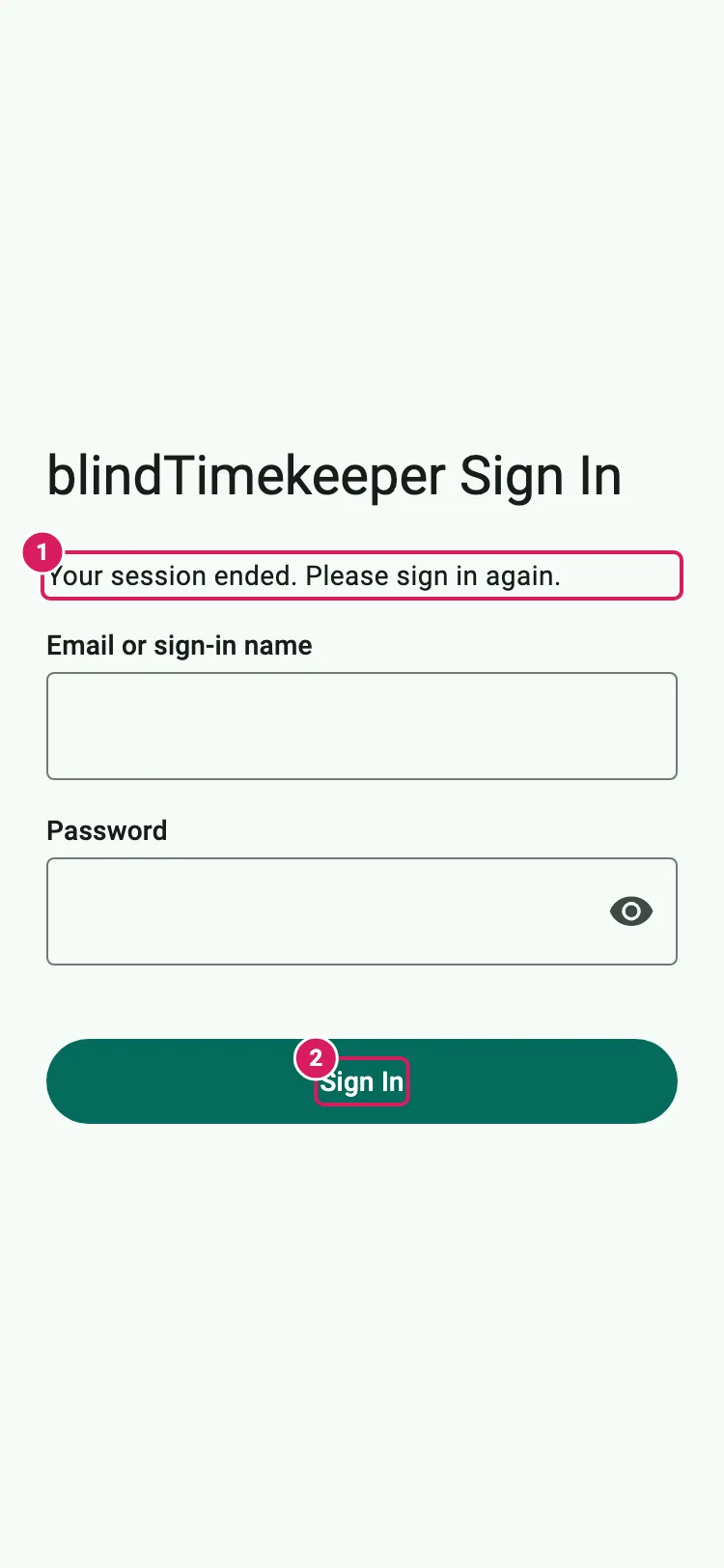
Colours, icons and badges
Section titled “Colours, icons and badges”A notice above the form says "Your session ended. Please sign in again." when you were signed out and come back to this screen. While you type your password, the screen says "Caps Lock is on" if the key is on. Messages appear in words, never only a colour.
Phone and desktop
Section titled “Phone and desktop”The form is the same on both. After you sign in, the web opens the manager screens and the phone opens the employee app.
Common questions
Section titled “Common questions”It says my email or password was not accepted. The screen says "Email or password was not accepted. Try again." Check both and try again.
I forgot my password. Touch Forgot your password?, write your email and open the link we send. If you sign in with a sign-in name, ask your manager for a reset link; see Join your company with a link.
It says too many attempts. Wait a moment and try again: "Too many sign-in attempts. Wait a moment and try again."
It says it could not connect. "Unable to connect. Check your connection and try again."
On the web it says my account is not authorized. "This account is not authorized for the admin center." That account has no manager access. Employees use the app on the phone.
On the phone it says my account is not linked. "This account is not linked to an employee profile." Ask your manager for an invitation link; see Join your company with a link.
Can I sign in with a different language? The sign-in screen has no language choice. Change the language in Profile after you sign in; see Change your language, email or PIN.