My Time
At a glance
Section titled “At a glance”My Time is the history of your shifts. Use it to check the hours you worked, your breaks and where you worked, and to see which shifts a manager adjusted.
The screen
Section titled “The screen”The shifts are in groups: Today, Yesterday, This week and Earlier. Each shift shows its date, the times it started and ended, how much you worked and how long you rested.
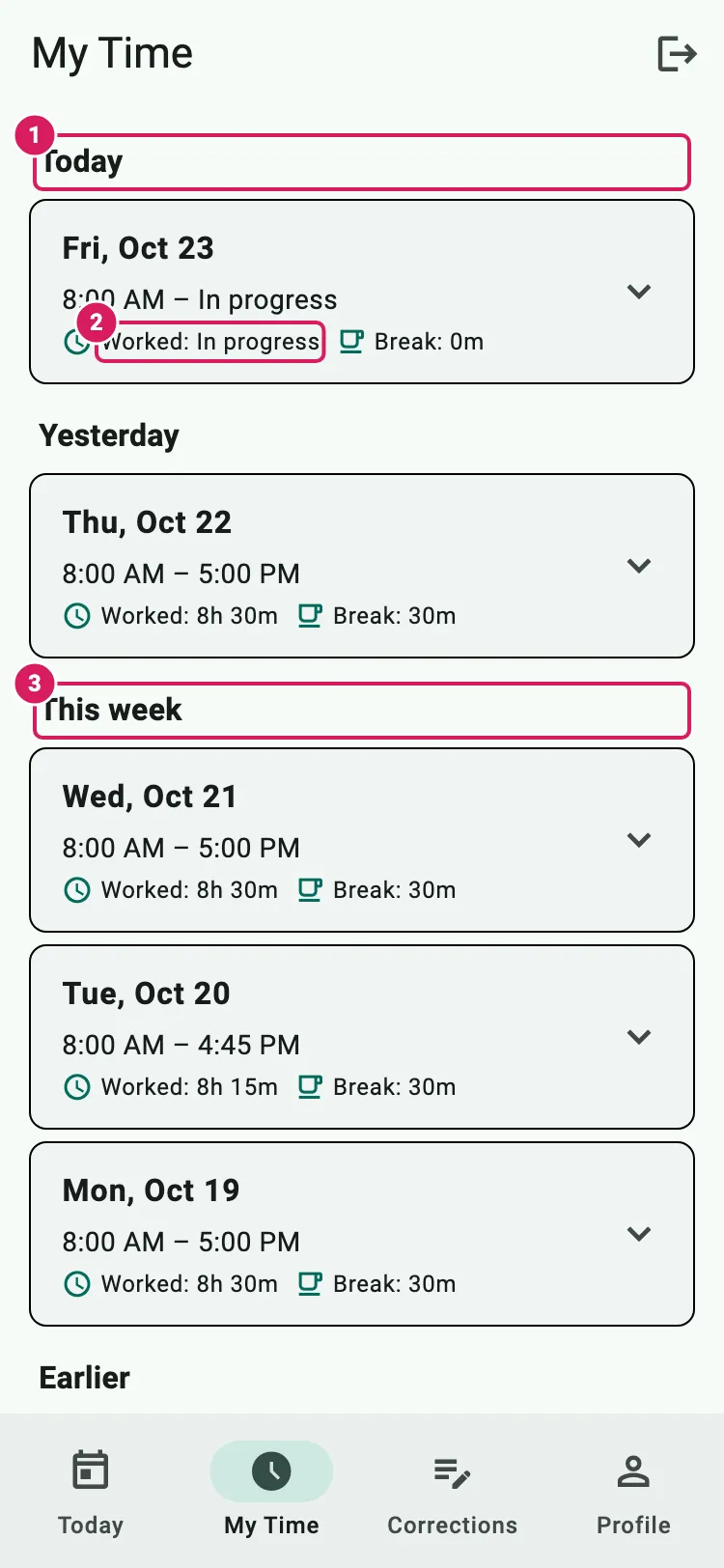
Parts of the screen
Section titled “Parts of the screen”- The Today group heading. The other groups have the same look.
- Worked: {value} on a shift: the hours you worked in it.
- The This week group, the shifts of the current week.
Options and filters
Section titled “Options and filters”None. The list shows your latest shifts of this month and the month before, up to the latest 50.
Actions
Section titled “Actions”Touch a shift to open it. It shows Break time, Location and, when a manager or an approved correction changed the shift, Adjustment.
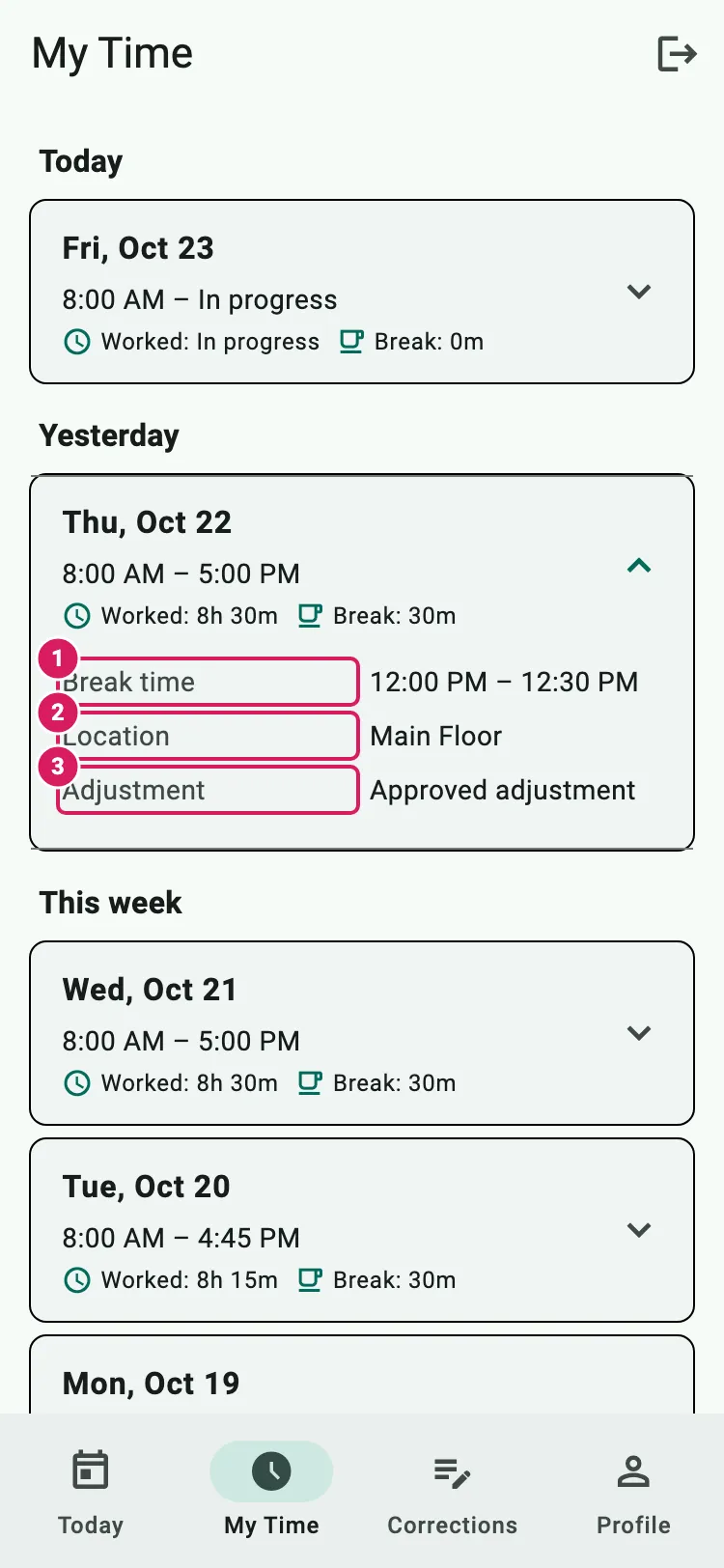
Colours, icons and badges
Section titled “Colours, icons and badges”A shift that has not ended says "In progress" in place of its end time. In an open shift, Break time lists each break with its times, "Ongoing" for one that has not ended, and "None" when you took no break. A shift that was changed says Adjustment and "Approved adjustment" in its details. Words carry the meaning, never a colour alone.
Phone and desktop
Section titled “Phone and desktop”This tab is part of the Employee Mobile app, made for a phone.
Common questions
Section titled “Common questions”A shift is missing or wrong. Ask for a fix in Corrections. See Ask for a correction.
Where are my older shifts? The list reaches back to the start of the previous month. Ask your manager for older ones.
The list is empty. The page says "No recorded shifts yet." until you have a shift.
What does "week" mean here? The pay week of your company: This week starts on the first day of it.