Close a pay period and export it
At a glance
Section titled “At a glance”- Time: about ten minutes, longer if there are warnings to clear.
- Who: a manager who can manage payroll; exporting needs the export permission.
- Difficulty: medium.
Purpose
Section titled “Purpose”Lock the figures of a pay period so they cannot change, and produce the official export for payroll.
Ingredients
Section titled “Ingredients”- Permission to manage payroll to close, and permission to export to export.
- The period reviewed: open shifts closed, pending corrections decided in Review, and pay setups in place.
Expected result
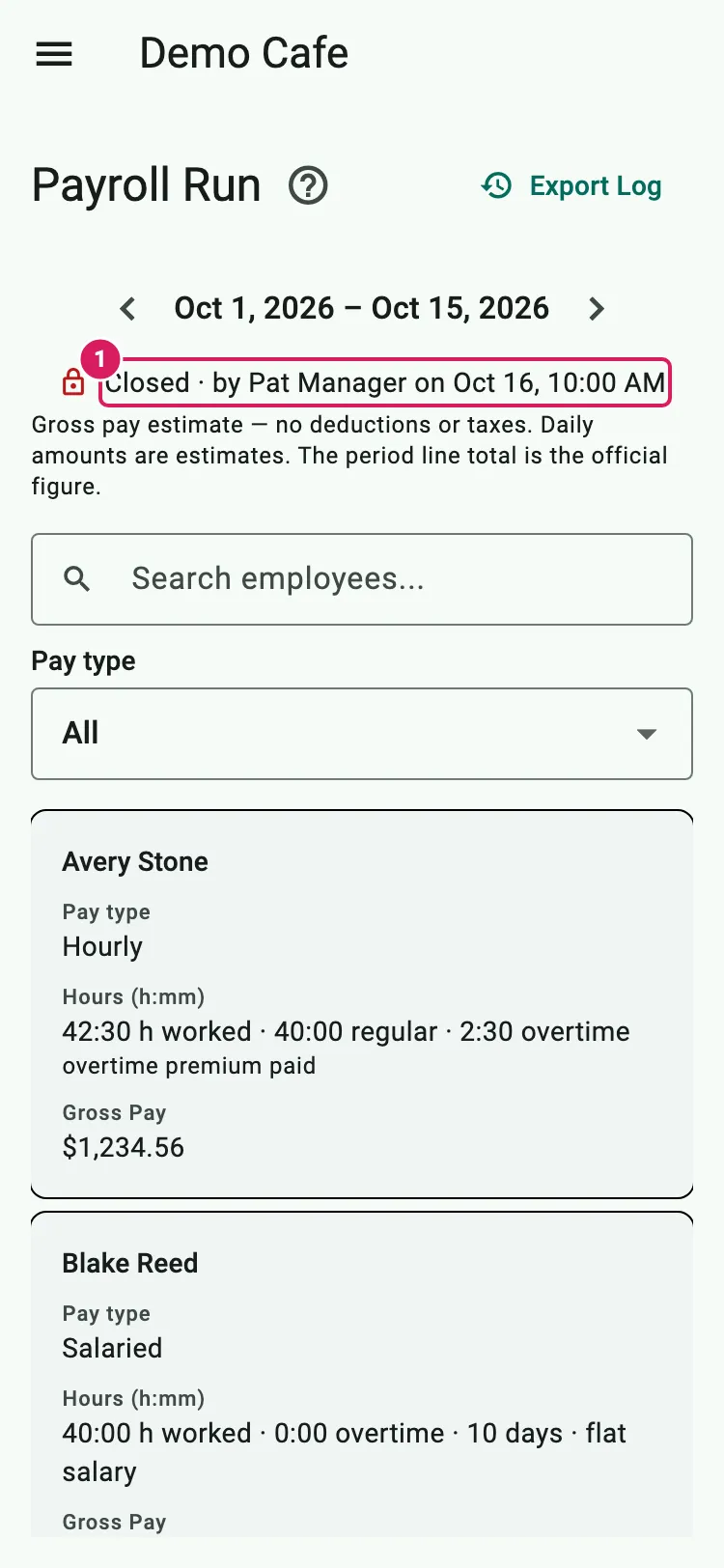
Section titled “Expected result”The period shows "Closed" with who closed it and when, and has no Close Period button. Its figures are frozen: they do not change, even if a correction is approved later. The export is recorded in Export Log.
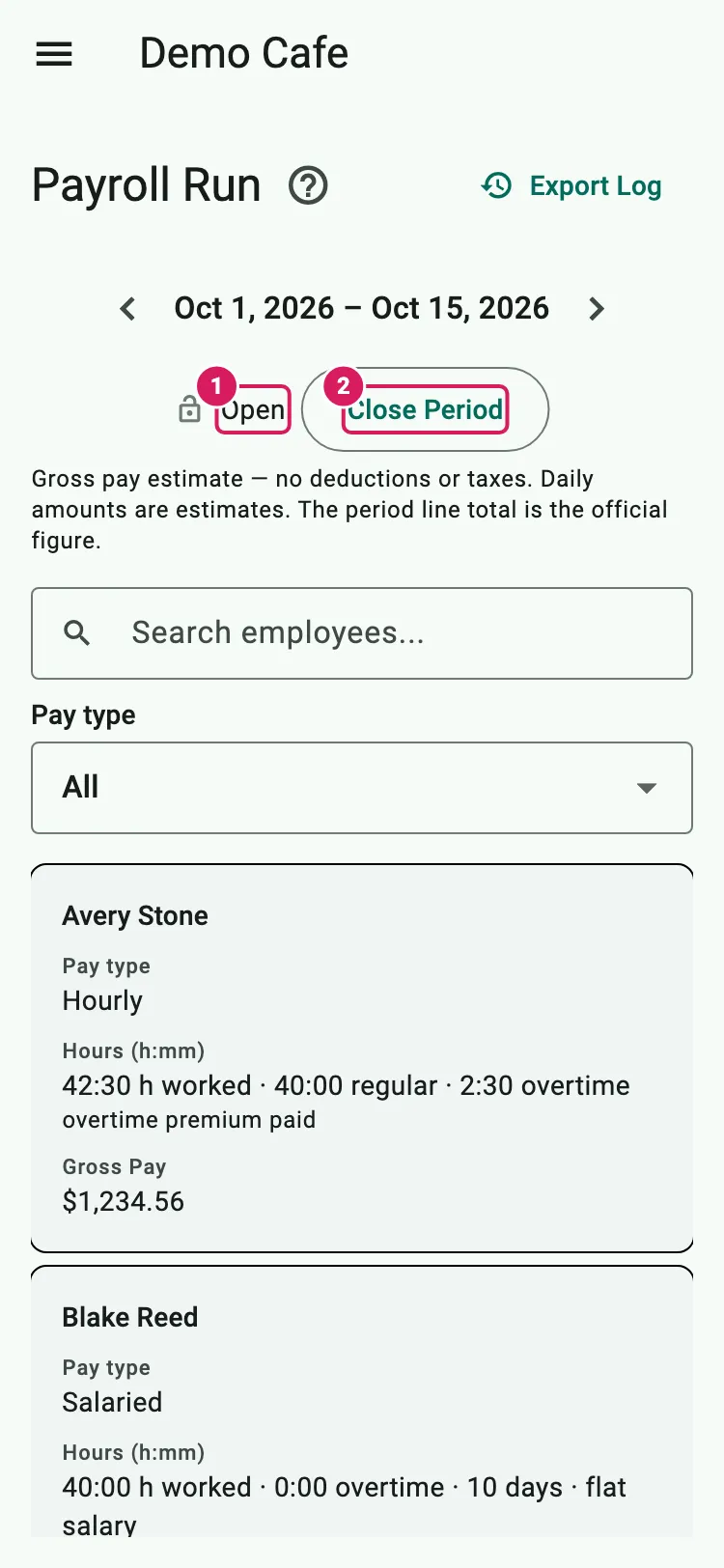
- Open Payroll. Use the arrows (Previous period, Next period) to reach the period.
- Read the banner "These figures may be incomplete", if there is one. It lists open shifts, pending corrections, employees with hours but no pay setup, and salaries not reviewed since the pay period changed. Clear what you can; Mark Reviewed confirms a salary again without changing it.
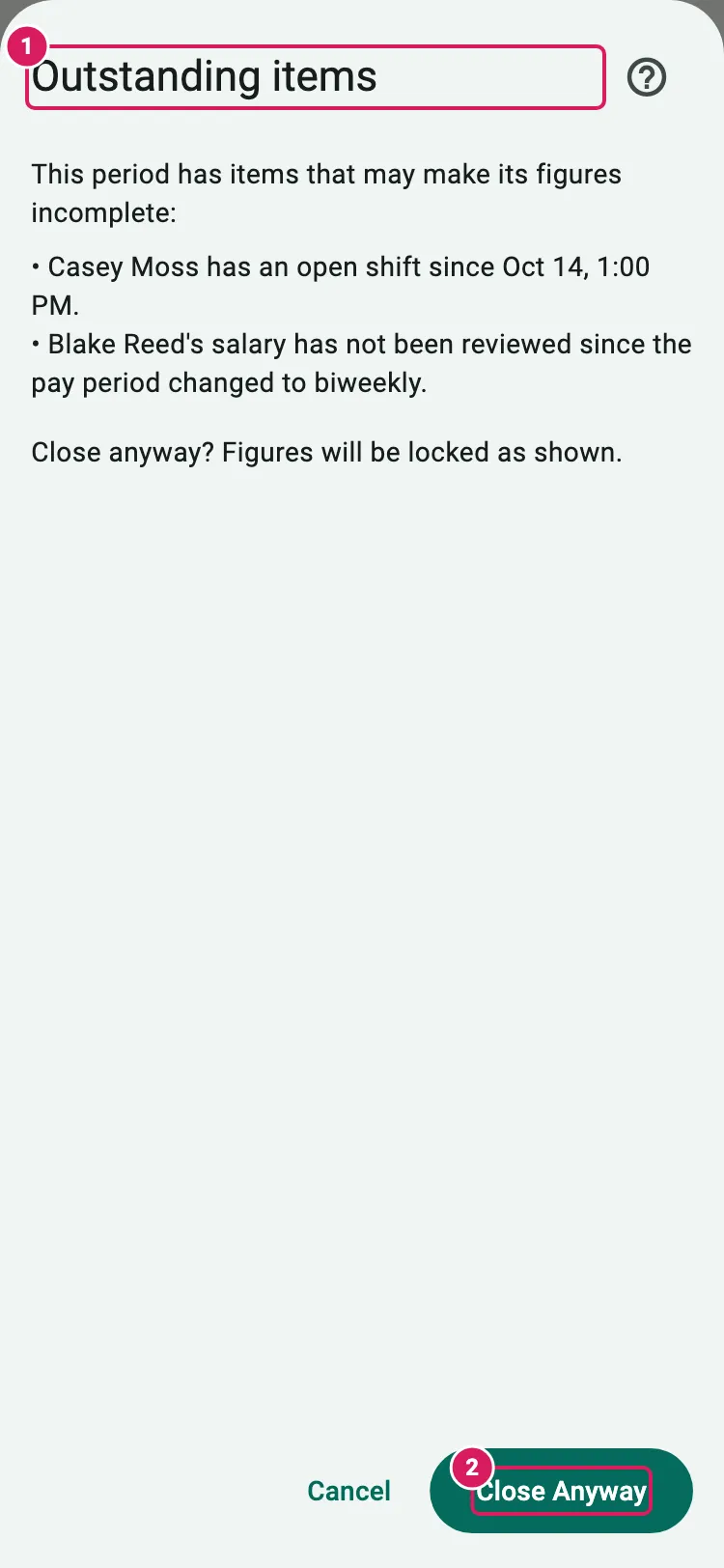
- Touch Close Period and confirm. With items still outstanding the app lists them and asks "Close anyway?": touch Close Anyway to close with the figures as shown.
- When the app offers the official export, touch Export CSV or Export PDF. You can also choose Not now and export later from the period.
Each export is recorded. Export Log lists the latest ones, newest first, with who made each and when; open one to see the fixed snapshot of its figures. The CSV is named payroll_ followed by the start and end dates, for example payroll_2026-10-01_2026-10-15.csv.
The figures are a gross pay estimate, with no deductions or taxes. The line total of the period is the official figure.
Check your work
Section titled “Check your work”The period reads "Closed" with your name and the date, the close button is gone, and the export appears in Export Log.