Employees
At a glance
Section titled “At a glance”Employees is the list of your people. Use it to add someone, change their details or pay, set or reset the PIN they use at the kiosk, unlock a PIN and deactivate someone who has left. The same screen opens from Employee Access in Settings.
The screen
Section titled “The screen”At the top are the title and the Add Employee button. Under them are a search box and two filters. Each employee is one row, with their contact line, their position and location, their pay and a few badges. You need the permission to manage employees to change anything; without it the buttons are switched off.
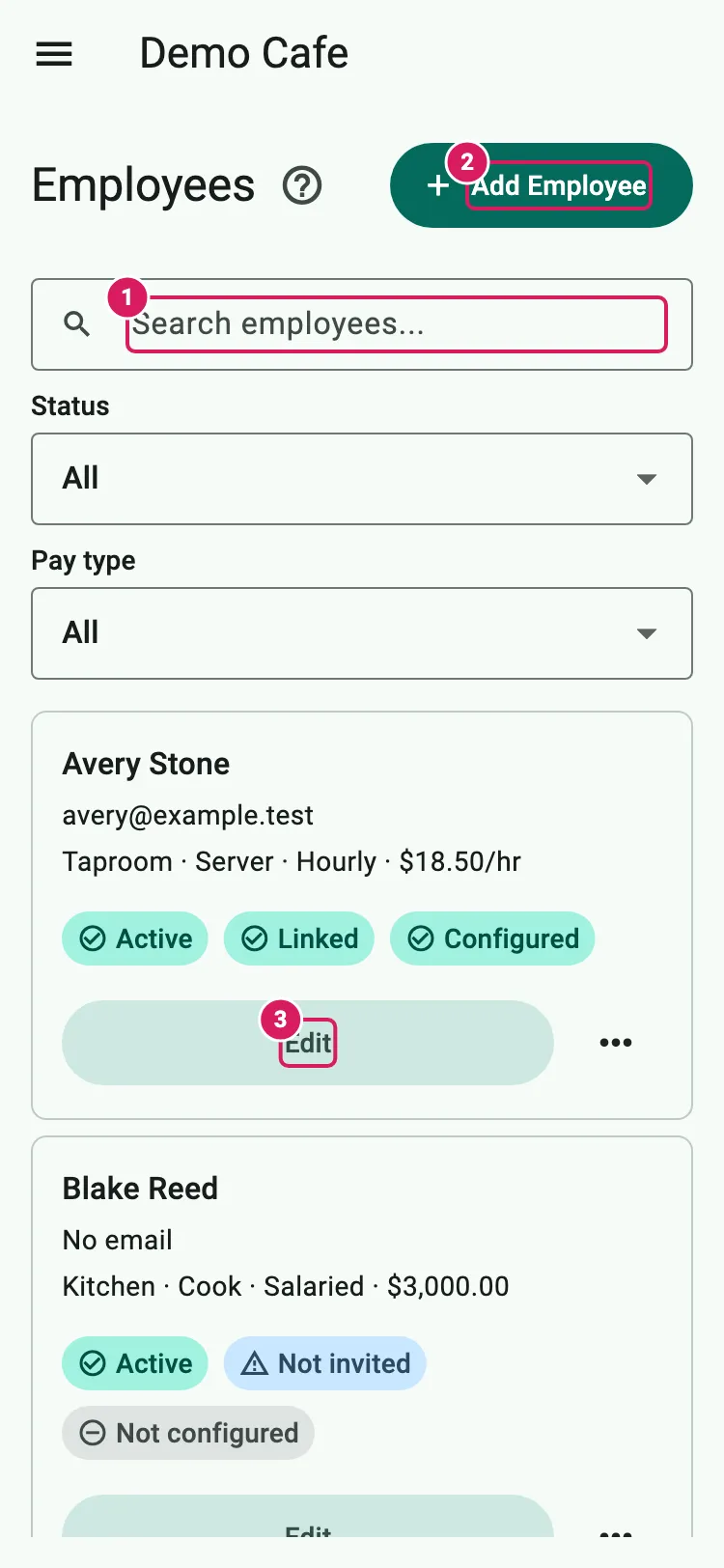
Parts of the screen
Section titled “Parts of the screen”- The Search employees... box finds an employee by name, email or employee code.
- The Add Employee button opens the form for a new employee.
- The Edit button of a row opens the form to change that employee.
Options and filters
Section titled “Options and filters”- Status limits the rows to All, Active or Inactive.
- Pay type limits the rows to All, Hourly or Salaried. It shows only to managers who may see payroll.
- The filters and the search work together. Nothing is saved when you leave the screen.
Actions
Section titled “Actions”- Add Employee and Edit open the same form. See Add an employee and set a PIN.
- Sign-in access opens the invitations of that employee: invite by email, create a link to share, send again, revoke, and make a reset link for an account with no email. See Invite an employee to sign in. It shows only on an active employee.
- Set PIN gives an employee a kiosk PIN; once one exists the button says Reset PIN. The dialog also has Disable PIN.
- Unlock PIN appears only on a row that says PIN locked. It clears the failed attempts so the employee can try again. The unlock is saved in the audit history.
- Deactivate appears only on an active employee. It asks "Deactivate {employee}?" and says the employee will no longer appear in active timekeeping workflows while their time and payroll history is kept.
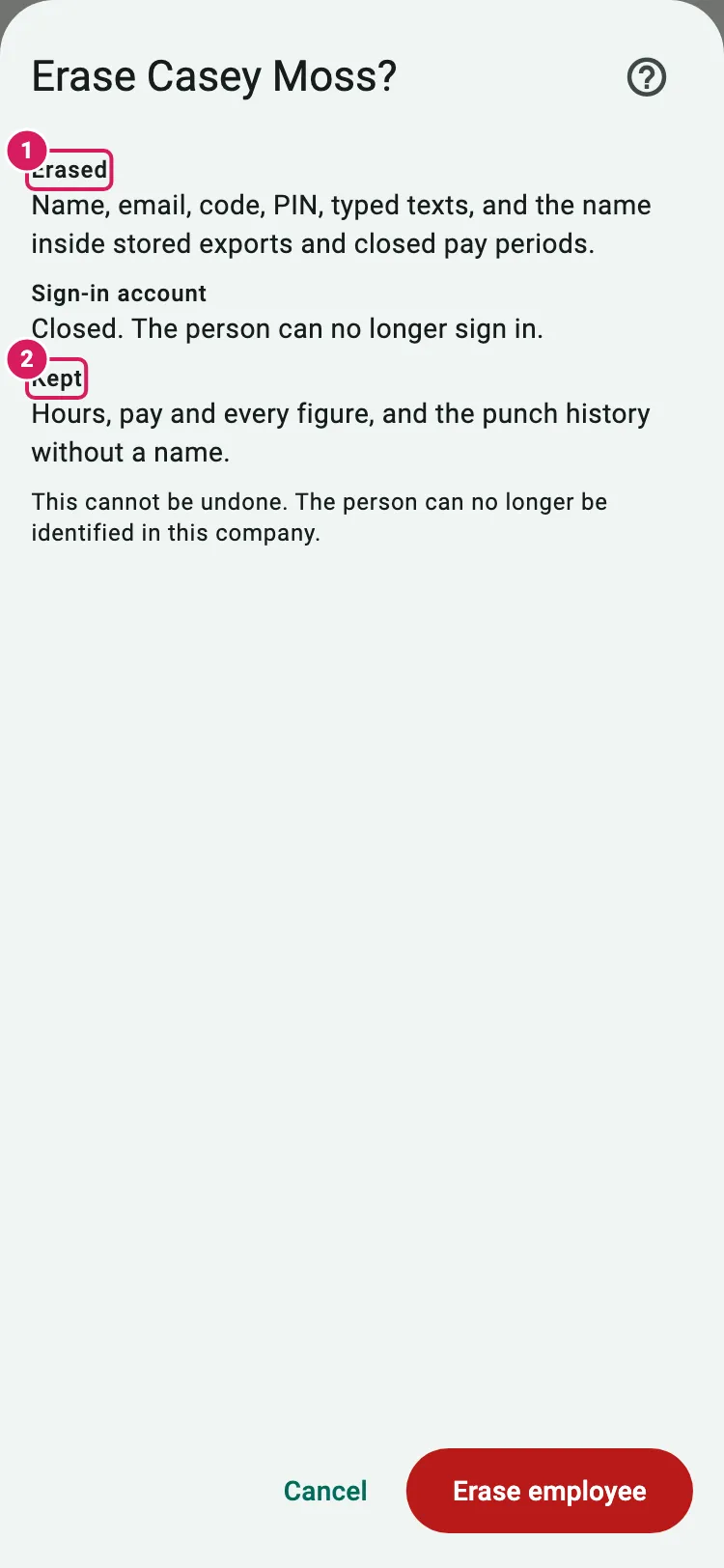
- Erase employee appears only to the owner, on an employee who is Inactive. It first asks the server: if the person worked recently it says until which day the country's minimum retention keeps their time records, and nothing is erased. Otherwise it lists what happens (name, email, code, PIN and typed texts are erased, the sign-in account is closed, and hours, pay and every figure stay without a name) and Erase employee in the dialog confirms. It cannot be undone.
- On a phone Edit is the main button and the others are under More actions.
The confirmation of Erase employee says what is erased and what stays:
Colours, icons and badges
Section titled “Colours, icons and badges”Every badge has an icon and a word, so the colour is never the only signal.
- Employment: Active or Inactive.
- Account: Linked (the employee has signed in to their own account), Invitation pending, Invitation expired, Invitation revoked or Not invited.
- PIN: Configured or Not configured, and PIN locked when the kiosk locked it after too many wrong attempts.
Phone and desktop
Section titled “Phone and desktop”On a phone each employee is a card with the buttons under the badges. On a desktop the employees are rows with every button visible.
Common questions
Section titled “Common questions”The list is empty. The page says "No employees yet." when you have none, and "No employees match your search or filters." when the search or a filter hides every row.
Can I delete an employee? Deactivate keeps the history of time and pay, and the employee can be made Active again with Edit. To remove a person's identity for good, the owner uses Erase employee once the person is inactive and the minimum retention of the country has passed.
Why does a row say Not invited? The badge only reports the state of the employee's account. This screen does not send invitations.
I tried to save while offline. Changes here are never queued. The page says "You're offline. Connect to the internet and try again."