Clock in, clock out and take a break at the kiosk
At a glance
Section titled “At a glance”- Time: under a minute.
- Who: any employee, at the kiosk tablet.
- Difficulty: easy.
Purpose
Section titled “Purpose”Record when you start work, take a break, come back from it and finish, so your hours and your pay are right.
Ingredients
Section titled “Ingredients”- Your PIN, or the Employee Mobile app on your phone if your company uses QR codes.
- Your name on the kiosk list. The list shows the active employees of the kiosk's location, or of the whole company, depending on how a manager set up the kiosk.
Expected result
Section titled “Expected result”The kiosk confirms what it recorded, with your name, for example "Clock In recorded.", and goes back to the list by itself after two seconds. Your card then shows your new status.
- Find your name and touch your card.
- Choose what you are doing: Clock In, Start Break, End Break or Clock Out.
- Type your PIN and touch Confirm PIN, or approve on your phone if the kiosk shows a QR code.
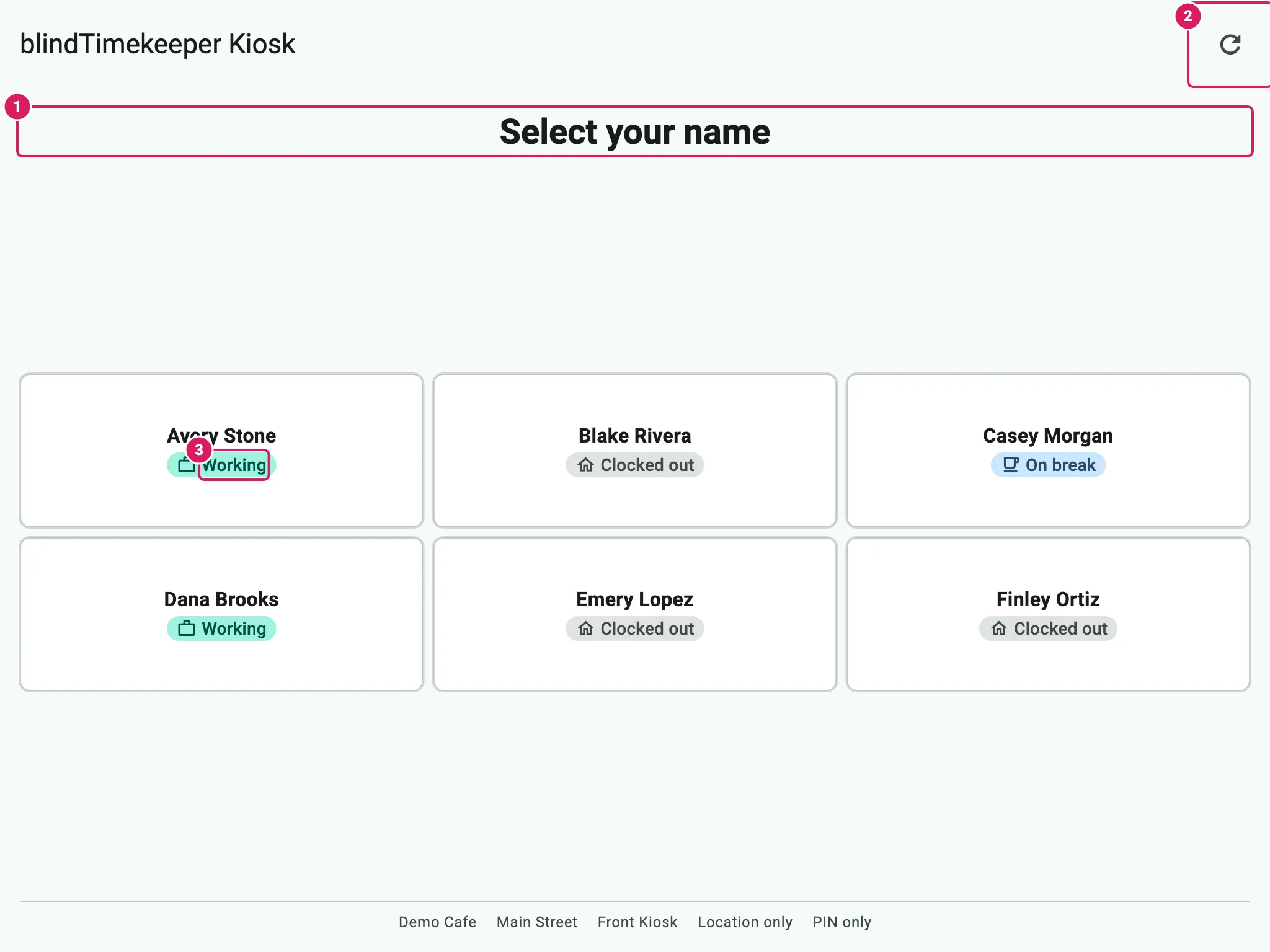
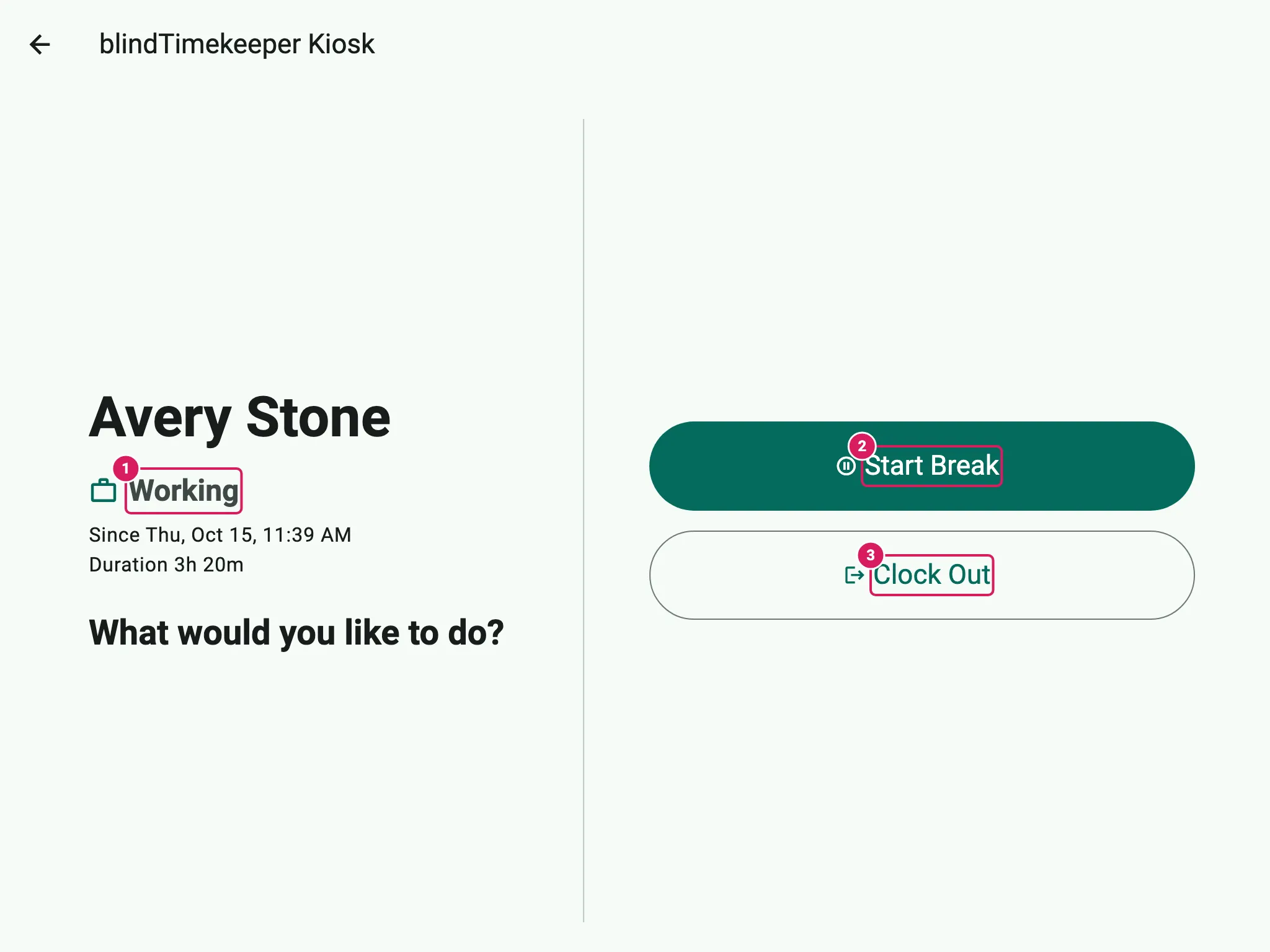
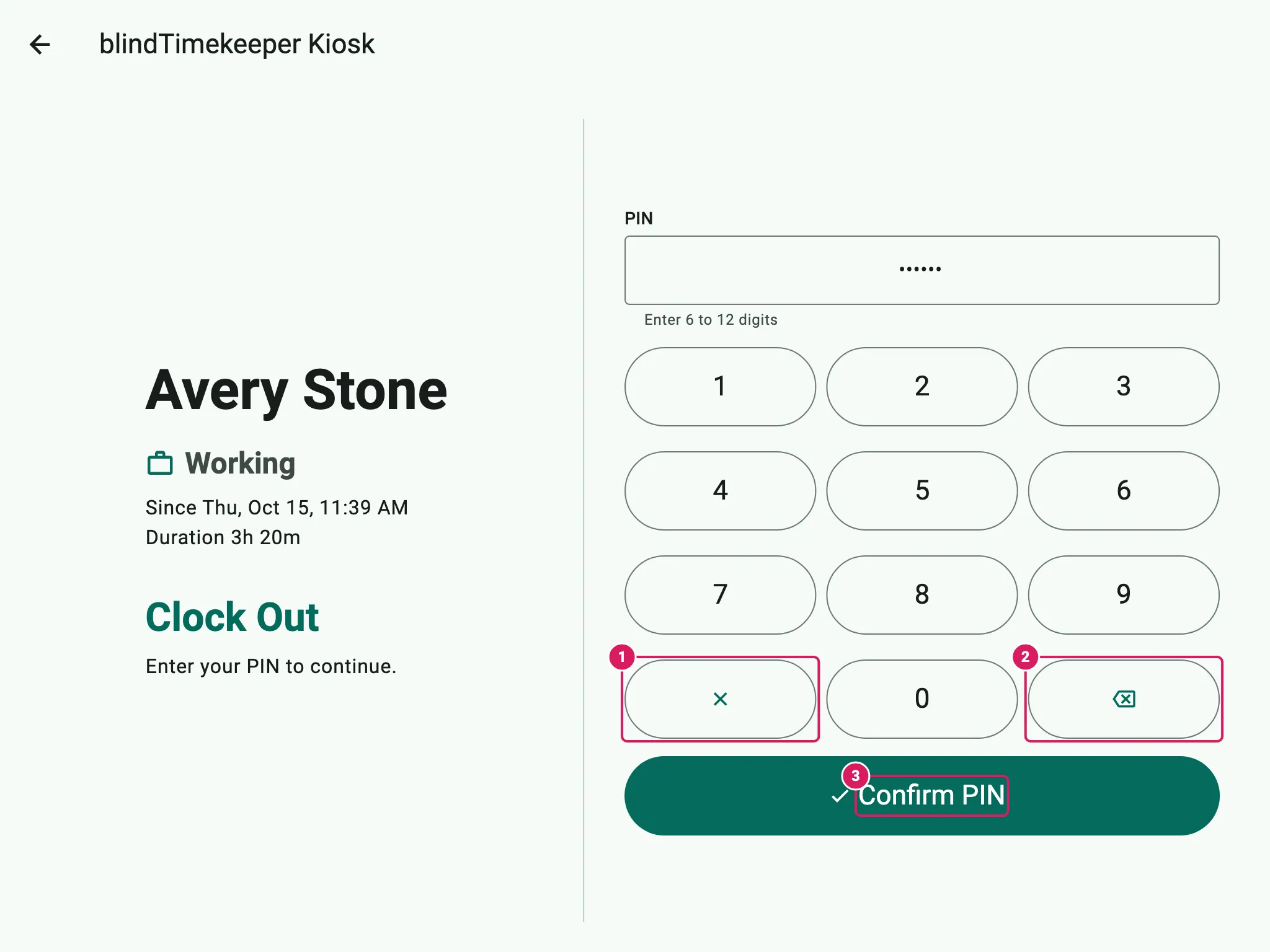
The numbers on the pictures point at the buttons and texts named in the steps.
Your card shows your status: Working, On break or Clocked out. The kiosk offers only the actions that fit it: Clock In when you are clocked out; Start Break or Clock Out when you are working; End Break or Clock Out when you are on break.
When there are ten or more employees, a search field named Search employees appears above the cards: type a few letters of your name. If your name is missing or out of date, touch Refresh employees.
When you are clocked out, Clock In is the only choice, so the kiosk selects it for you and goes straight to the PIN or the QR code.
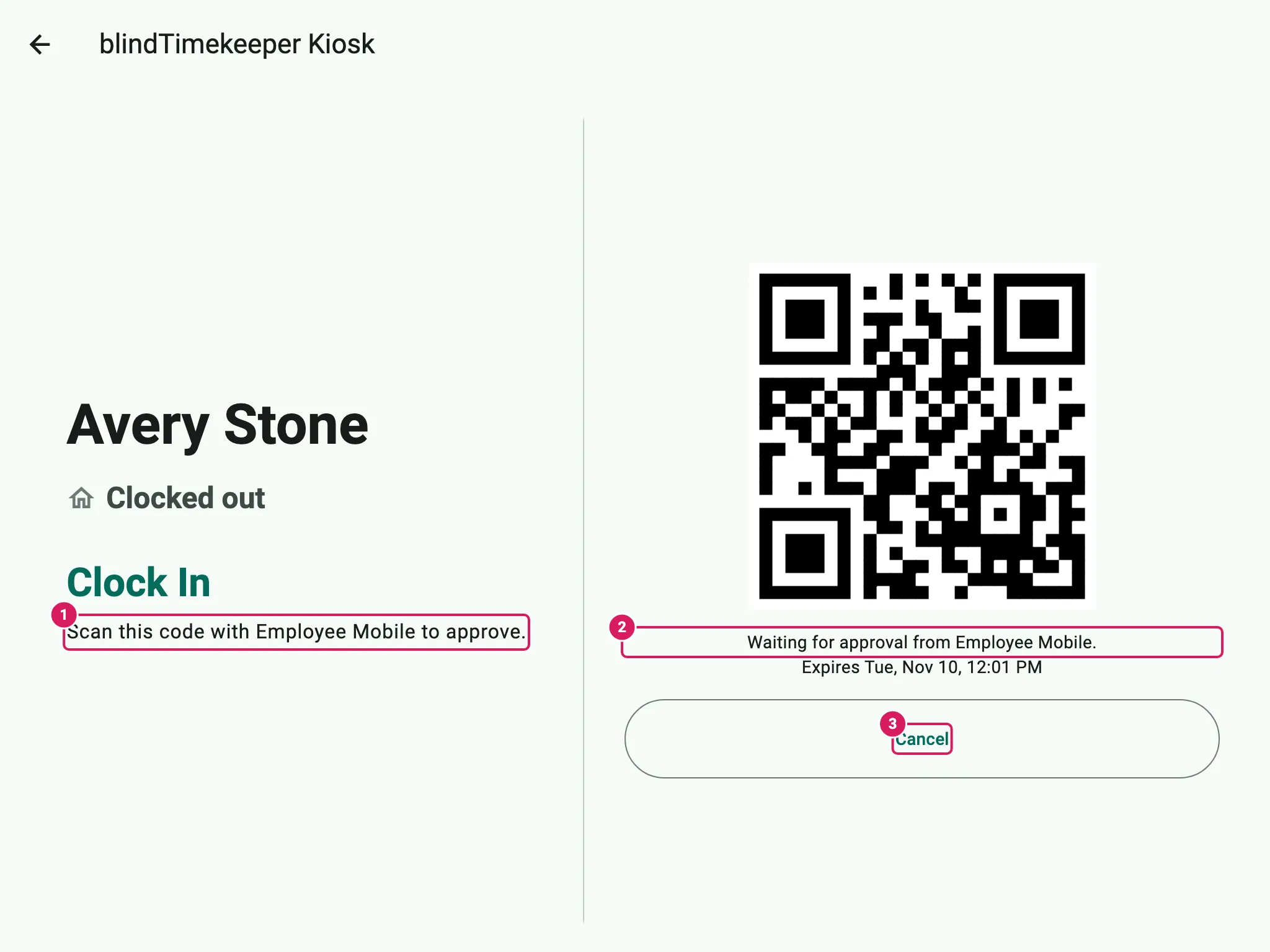
If your company uses a QR code, the kiosk shows a code and waits. On your phone open the Employee Mobile app, touch Scan kiosk QR and point the camera at the code. Check that the kiosk and your name are right, then approve. The code is valid for 75 seconds; if it expires, touch Retry QR. Only when your company allows a backup PIN does Use backup PIN appear.
Check your work
Section titled “Check your work”You see the confirmation with your name and the action. On the list, your card shows the new status.
What next
Section titled “What next”- The offline rule and the first-day rule
- Ask for a correction if you forgot to punch
- The kiosk screen