Approve a kiosk punch from your phone
At a glance
Section titled “At a glance”- Time: about 30 seconds.
- Who: an employee, with the employee app on their phone.
- Difficulty: easy.
Purpose
Section titled “Purpose”Punch at a kiosk that uses a QR code, with no PIN to type. You ask at the kiosk, then approve on your phone.
Ingredients
Section titled “Ingredients”- The employee app on your phone, signed in with your own account.
- A connection on the phone.
- Camera access for the app.
- A kiosk set to QR only or QR with PIN fallback.
Expected result
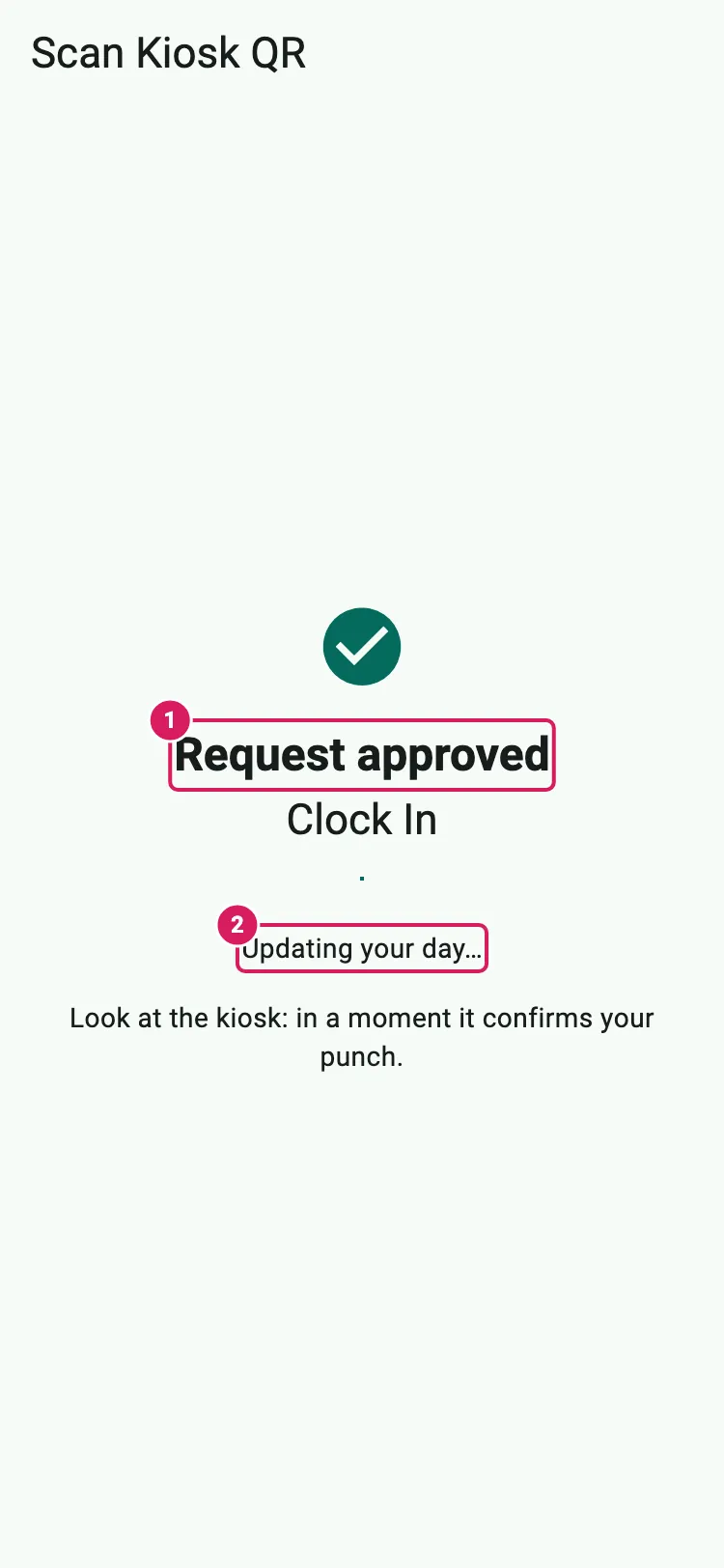
Section titled “Expected result”The phone says "Request approved", the kiosk confirms your punch, and the punch shows under Today's activity in the app.
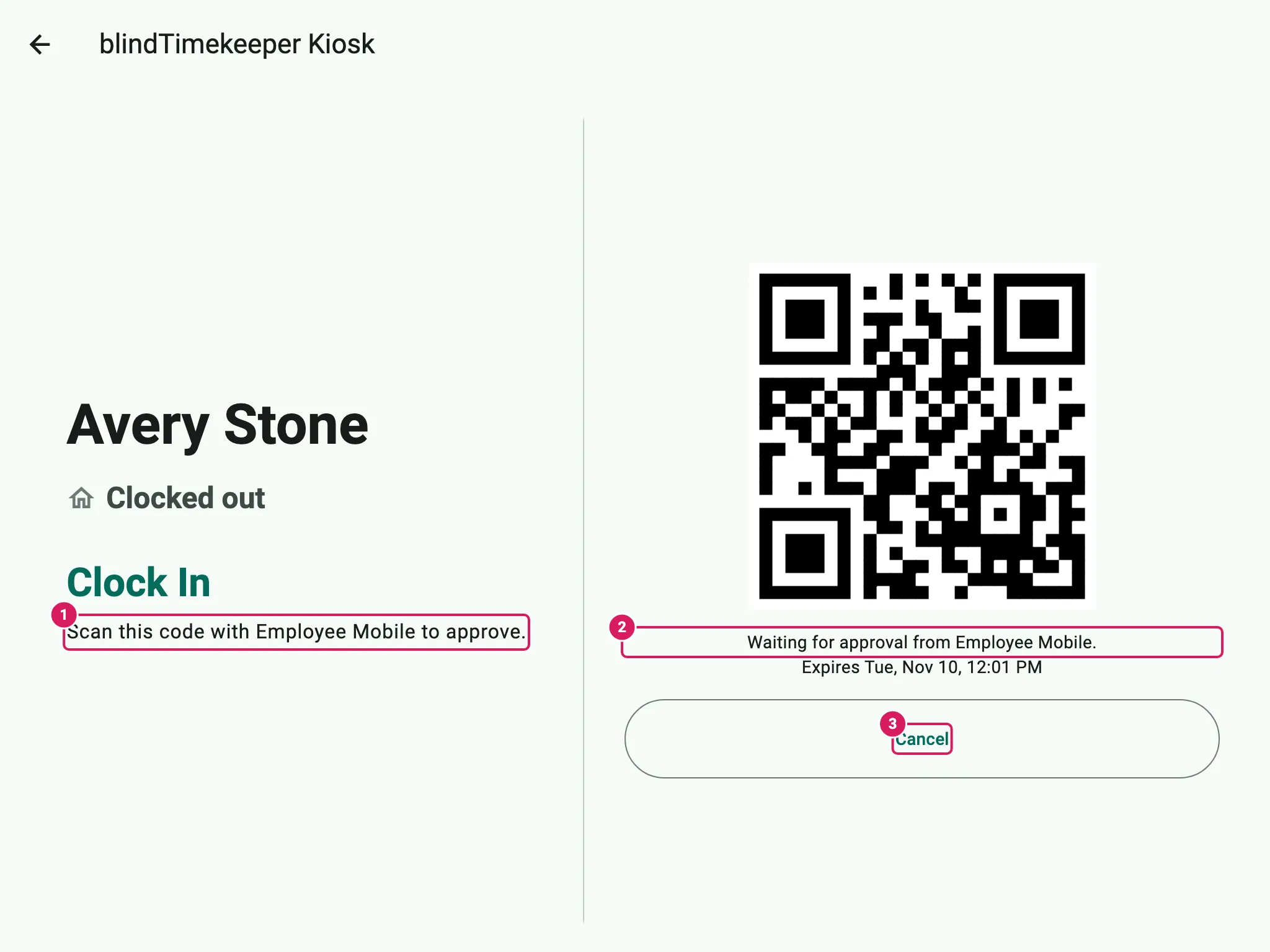
- At the kiosk, touch your card and choose the action. The kiosk shows a QR code.
- On your phone, open the Today tab and touch Scan kiosk QR.
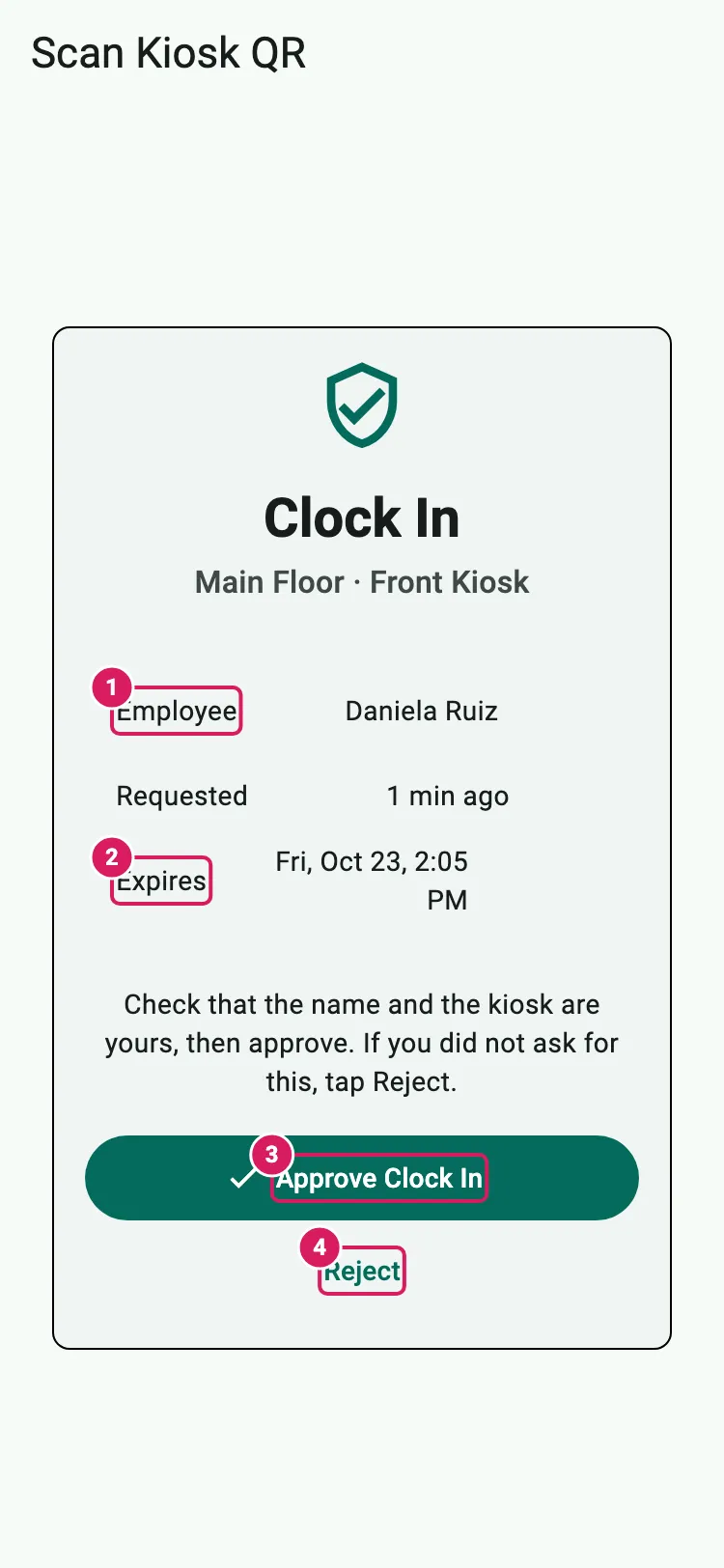
- Point the camera at the code. The phone reads it by itself and shows a card with the action, the kiosk, your name and when the request expires.
- Check that the name and the kiosk are yours, then touch Approve {action}.
- Look at the kiosk. In a moment it confirms your punch.
Check your work
Section titled “Check your work”- The phone said "Request approved" and then closed the scanner by itself.
- The kiosk shows the success screen for your action.
- Today's activity lists the punch.
What next
Section titled “What next”- Scan kiosk QR, screen by screen
- Clock in, clock out and take a break at the kiosk
- Ask for a correction