Add a missing day
At a glance
Section titled “At a glance”- Time: about three minutes.
- Who: a manager who may approve corrections.
- Difficulty: easy.
Purpose
Section titled “Purpose”Record the hours of a day that the employee did not punch, or add the times that are missing from a day that has a shift, such as a forgotten clock-out.
Ingredients
Section titled “Ingredients”- Permission to approve corrections.
- The employee and the date, up to today and no more than a year back.
- At least one time you know: clock in, clock out, start of a break or end of a break.
- A reason.
Expected result
Section titled “Expected result”The day shows the times you gave. If your company asks for a second approver, the day waits in Review until a different manager approves it, and it counts only after that.
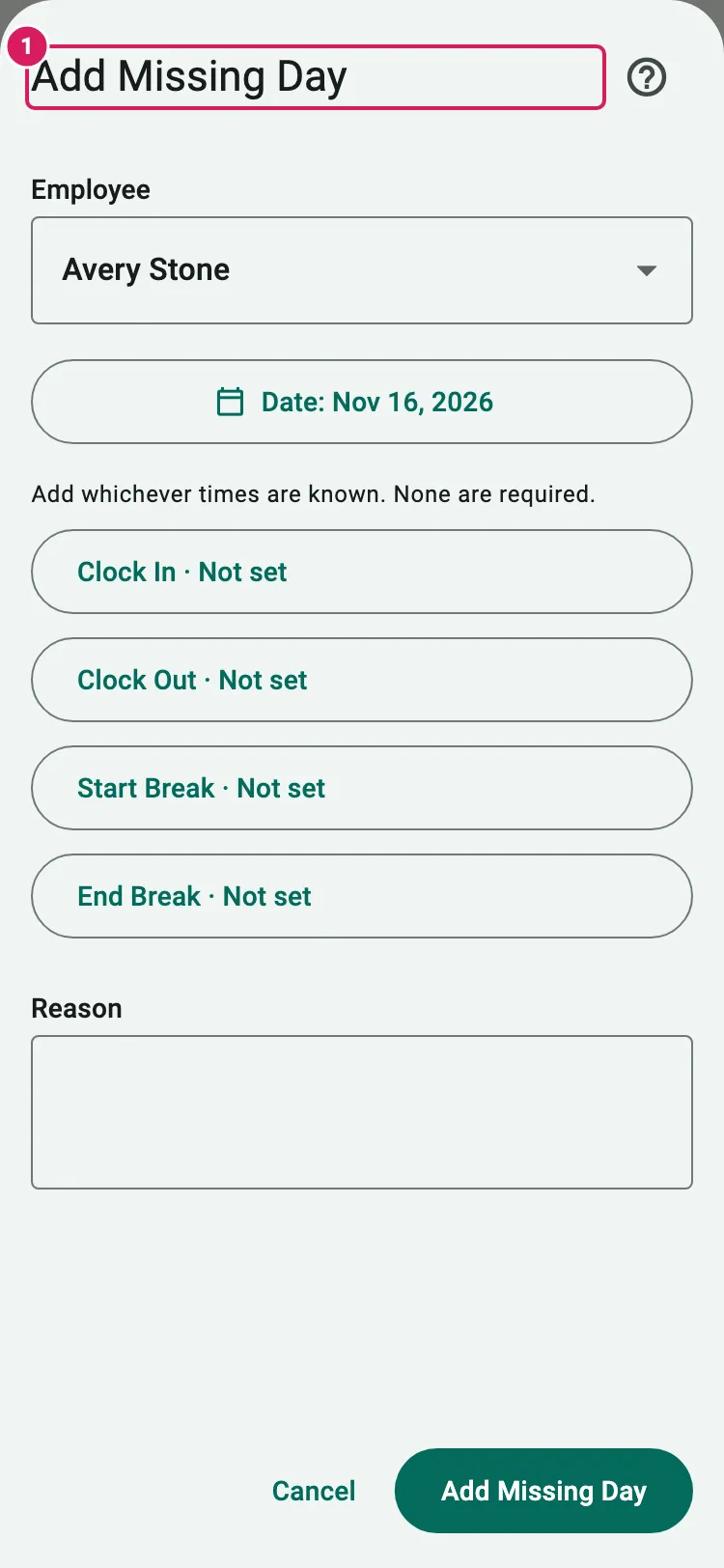
- Touch Add Missing Day. You find it in Review and in More actions on a row of Attendance or Time Logs; from a row, the employee comes with it, and from Time Logs, Summary, so does the date.
- Check the Employee and the date. If the day already has a shift, a note says so: the times already recorded are kept and only the missing ones are added.
- Add the times you know. None is required, but you need at least one. When you give a break, choose its type, Meal or Rest. A break must end after it starts.
- Write the Reason. It is required.
- Touch Add Missing Day. The page says "Day added." or, with a second approver, "Day added. It waits for a second approver."
Check your work
Section titled “Check your work”- The day shows in Time Logs with the times you gave.
- With a second approver, the day appears in the Added days tab of Review with its waiting state.
- If the day was in a closed pay period, the form said where the adjustment will be paid.