A late fix to a closed period
At a glance
Section titled “At a glance”- Time: the same as the original decision, plus a look at Payroll.
- Who: a manager who approves or edits time, and whoever closes payroll.
- Difficulty: medium.
Purpose
Section titled “Purpose”Fix a day that already belongs to a closed pay period without changing that period, and know where the extra pay shows up.
Ingredients
Section titled “Ingredients”- A correction, a shift edit, an added day or a held punch that falls on a day in a closed pay period.
- Access to Review to decide it, and to Payroll to see where it lands.
Expected result
Section titled “Expected result”The closed period does not change. The change keeps its original work date, and its effect on pay is paid as an adjustment in a later open pay period.
- Decide the change as usual in Review. Before you save, the form says the day is in a closed pay period and names the period that will pay the change.
- Save. The form then says the change will be paid as an adjustment in that period.
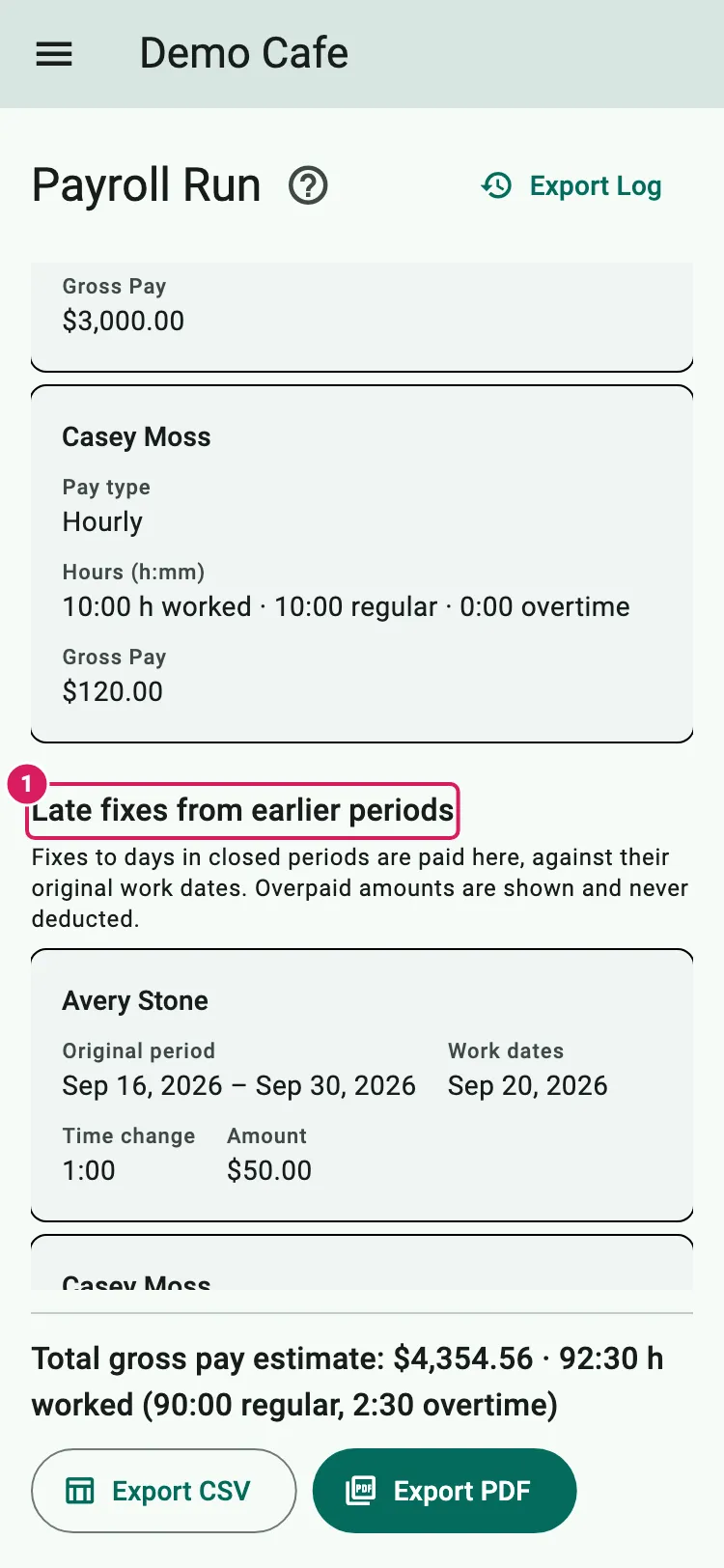
- Open Payroll and go to that period. In the section Late fixes from earlier periods, each line shows the employee, the original period, the work dates, the time change and the amount.
- Close that period as usual. Its figures include the fixes, and they are settled when it closes.
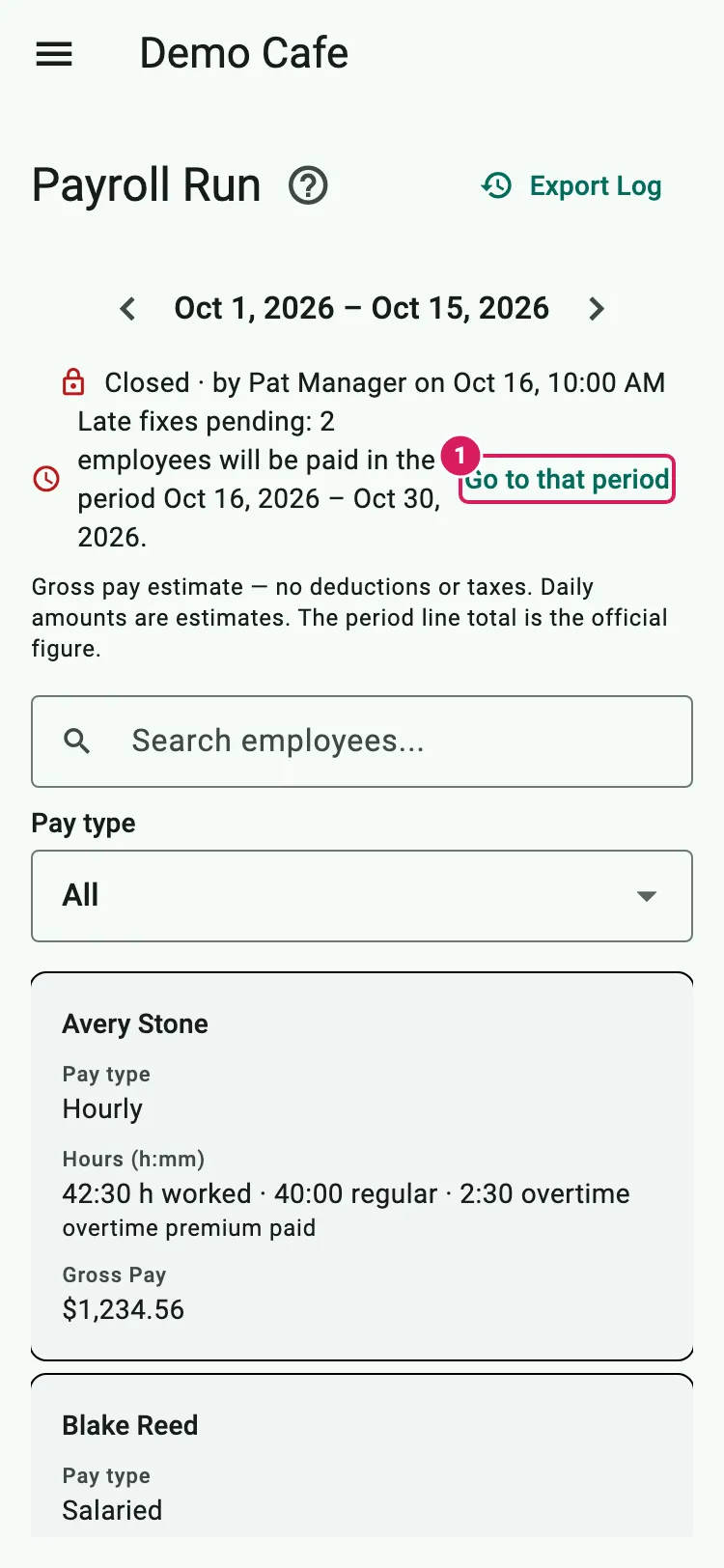
On the closed period itself, a line says "Late fixes pending" and how many employees will be paid in which period, with a Go to that period button.
Under the table, "Late fixes: ... added to gross. ... overpaid, not deducted." gives the totals. The gross of the period already includes the part that is added.
If the fix does not change pay, for example for a salaried employee who is not paid overtime, the form says the change updates the hours and pay does not change.
Check your work
Section titled “Check your work”In Payroll, the receiving period lists the fix in Late fixes from earlier periods, and the closed period shows it as pending until the receiving period closes.