First week as a manager
At a glance
Section titled “At a glance”- Time: a week, a few minutes each day after the first two.
- Who: an owner or a manager with permission for the parts named below.
- Difficulty: medium.
Purpose
Section titled “Purpose”Take a new company from nothing to its first closed pay period, in the order that avoids the usual surprises. Each step points to the page that explains it.
Ingredients
Section titled “Ingredients”- A manager account with permission for what you set up: locations, positions, employees, kiosks and payroll.
- The list of your people, with each one's pay type and rate.
- A tablet for the kiosk, and your pay frequency and overtime rule.
Expected result
Section titled “Expected result”By the end of the week your places, positions, employees and pay rules are in, a kiosk is paired and used, you read Today each morning, you have decided what waited in Review, and you know how to close the pay period and what to do about a late fix.
- Set up the company (day 1). In Settings, add your places in Locations and your jobs in Positions. Then set the pay period, the overtime rule and the country in Set the pay rules and the company country. Choose the week start day now: it cannot change once time is recorded.
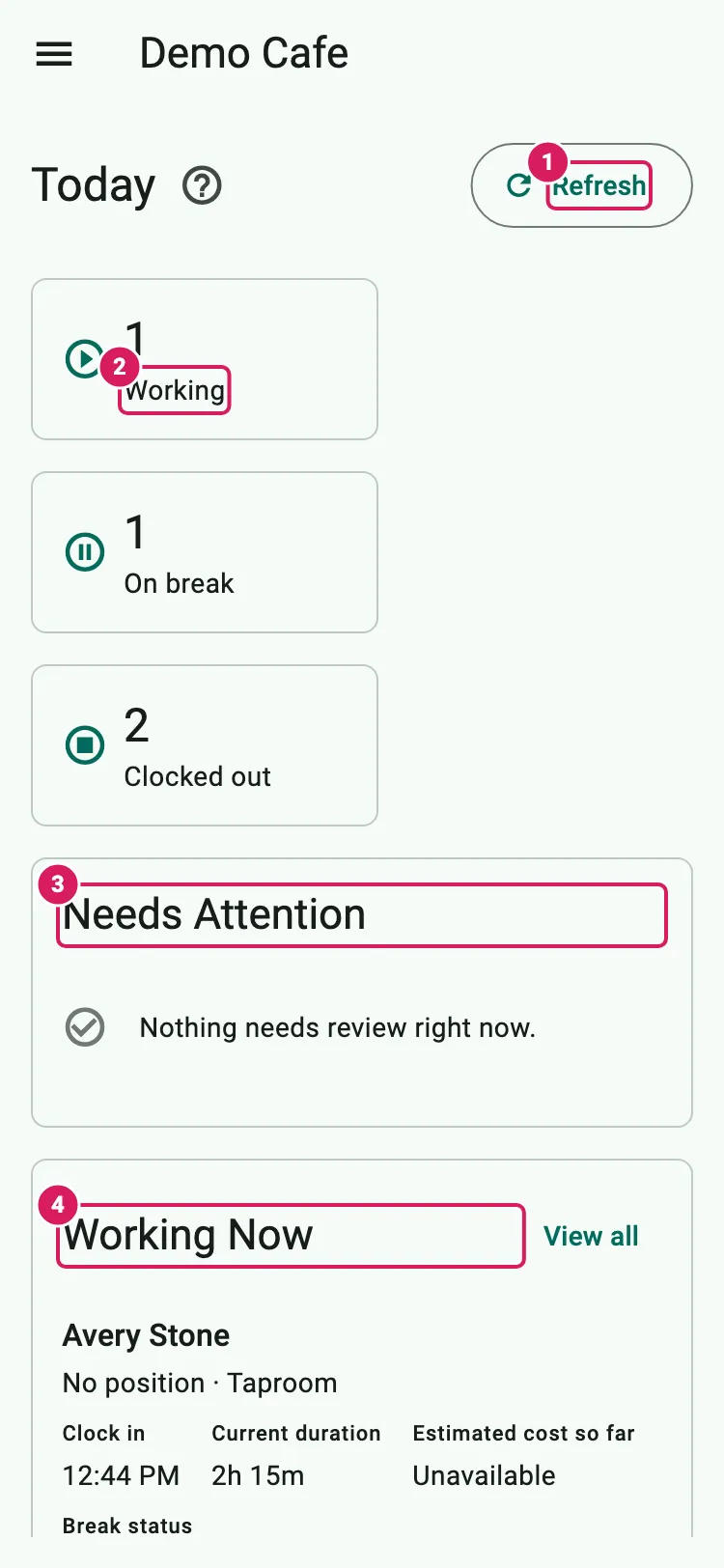
- Add your people (day 1). Add each employee with their position, location and pay, and give each a PIN: Add an employee and set a PIN. Today lists what is still missing under Needs Attention.
- Set up the tablet (day 2). Follow Set up a new tablet and Pair a kiosk. Have each employee punch once while the tablet is online. This is the first-day rule: on a new or re-paired tablet, an employee who has not punched online there cannot be checked offline, and an offline punch waits in Review as "The tablet had no PIN check for this employee".
- Decide about offline punches (day 2). They are off until you turn them on. Read The offline rule and the first-day rule, then Turn offline punches on if you want them.
- Start each day at Today (days 3 to 7). Today (manager) shows who is working, on a break or out. Attendance shows each person. Fix a wrong punch with Fix a shift and add a day nobody punched with Add a missing day.
- Work the review queue every day. Work the review queue: correction requests, punches held from offline kiosks and days another manager added. A decided item leaves the queue, and an approved change is added to the history; nothing is overwritten.
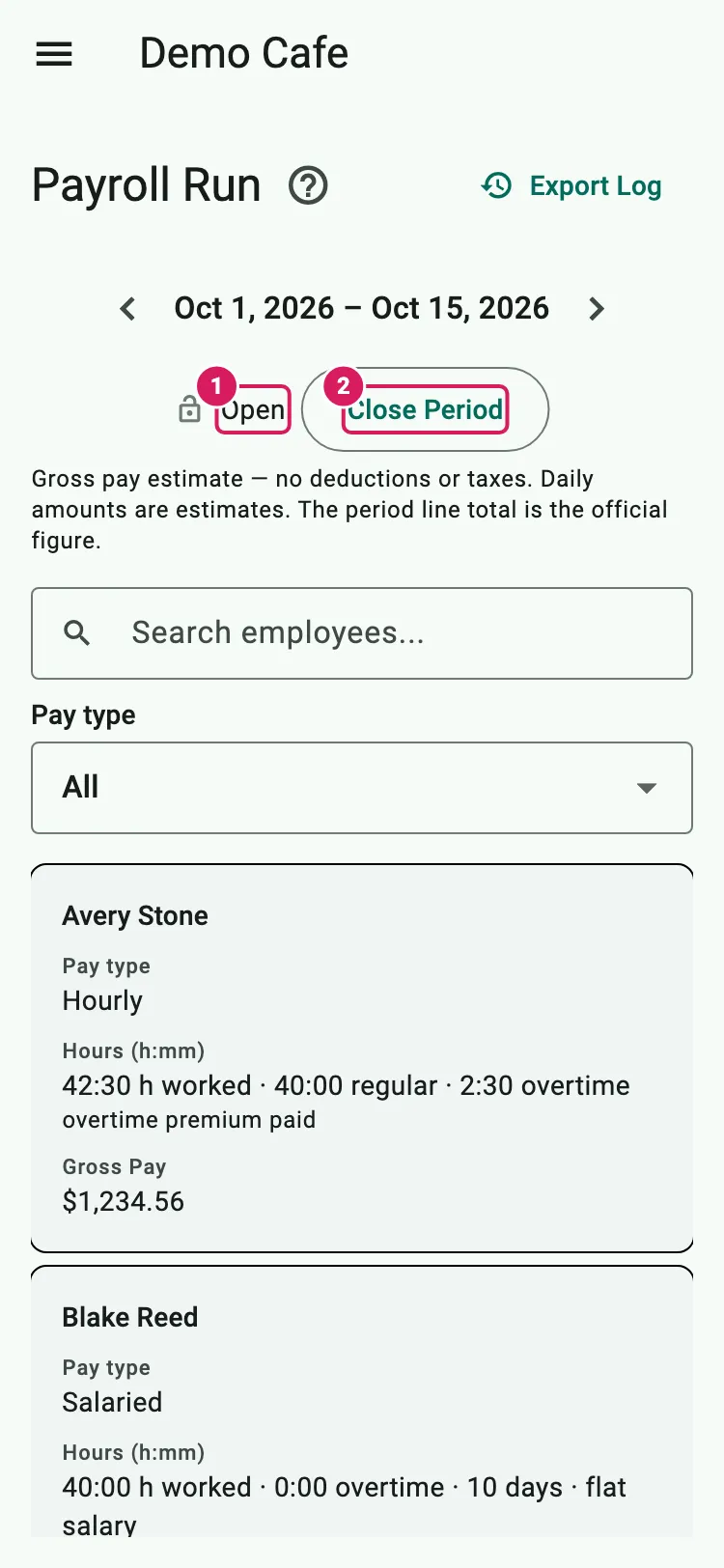
- On the last day of the pay period, close it. In Payroll, read the banner "These figures may be incomplete", clear what you can, and close the period. A period can be closed from its last day onward; before that the app says it is still running. Then export it: Close a pay period and export it.
- When a fix comes after the close, use a late fix. A closed period never changes. A change to one of its days is paid as an adjustment in a later open period: A late fix to a closed period.
Check your work
Section titled “Check your work”- Today shows "Nothing needs review right now." and the counts match who is at work.
- Review has no item waiting from before today.
- Payroll shows the period as "Closed" with your name, and the export is in Export Log.
What next
Section titled “What next”- Payroll Rules when your rules change
- Employees when someone joins or leaves
- Revoke or re-pair a kiosk when a tablet is lost or replaced