Payroll Rules
At a glance
Section titled “At a glance”Payroll Rules is where you set how your company is paid: the pay period, when time counts as overtime and how much it pays, which breaks are unpaid, the second approver for added days, and the company's country. The payroll calculation reads these rules; no screen works out pay by itself.
The screen
Section titled “The screen”The page has three parts, one under the other: the pay rules form, the Second approver for added days switch and the country. Anyone who may see payroll can read the page. Only a manager who may manage payroll can change it; for the others the fields are switched off.
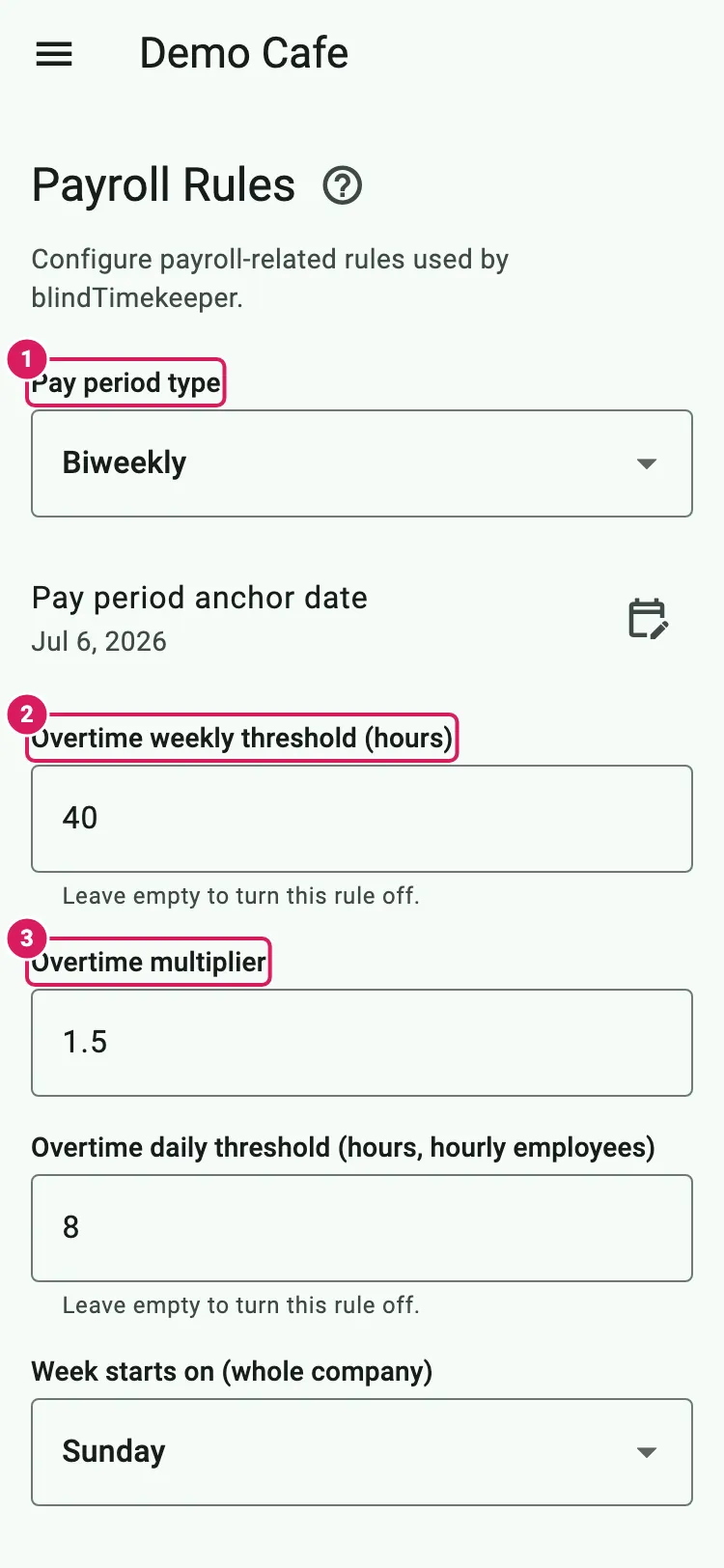
Parts of the screen
Section titled “Parts of the screen”- The Pay period type choice sets how often you pay.
- The Overtime weekly threshold (hours) field sets the hours in a week after which time counts as overtime.
- The Overtime multiplier field sets how much overtime pays compared with normal time, for example 1.5.
Options and filters
Section titled “Options and filters”- Pay period type: Weekly, Biweekly, Monthly or Twice a month (1st-15th, 16th-end). With Pay period anchor date the periods count from that date: seven days for weekly, fourteen for biweekly, a month for monthly. Twice a month needs no anchor: the 1st to the 15th and the 16th to the end of the month.
- Overtime weekly threshold (hours) and Overtime daily threshold (hours, hourly employees): leave a field empty to turn that rule off.
- Overtime multiplier: from 1.0 to 10.0.
- Week starts on (whole company): the first day of the company's week. See the question below.
- Standard week (hours): for salaried employees, the hours that their salary covers each week.
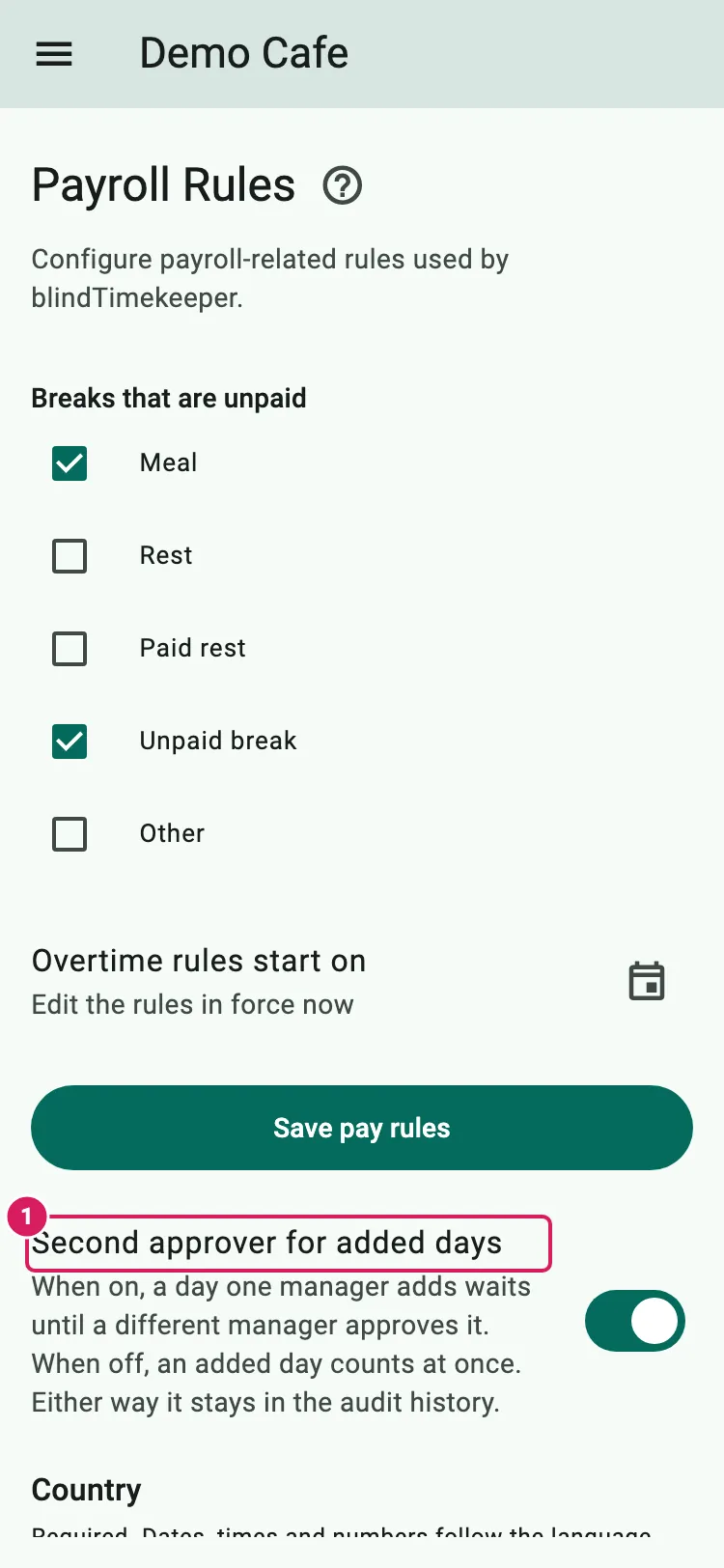
- Breaks that are unpaid: tick the types of break that are not paid: Meal, Rest, Paid rest, Unpaid break, Other.
- Overtime rules start on: by default Edit the rules in force now. Pick a date to make the new rules start then.
Actions
Section titled “Actions”- Save pay rules opens "Save these pay rules?", which lists every change from the old to the new value. Check them and touch Save pay rules again. The page says "Payroll settings saved."
- The Second approver for added days switch asks you to confirm with Turn on or Turn off. The page says "Setting saved." When it is on, a day that one manager adds waits until a different manager approves it. When it is off, an added day counts at once. Either way it stays in the audit history.
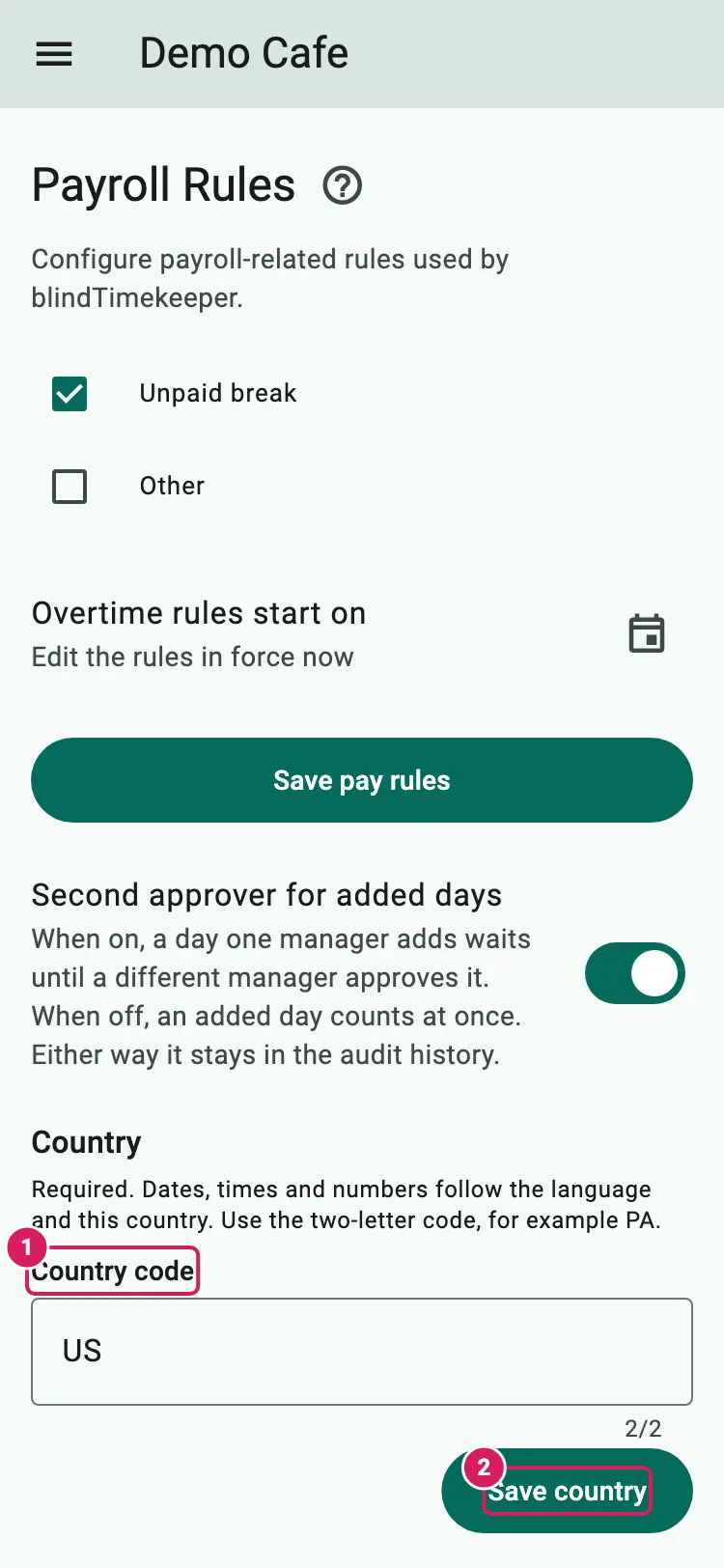
- Country code: type the two letters of your country, for example PA, and touch Save country. The page says "Country saved." The country is required, and dates, times and numbers follow the language and this country.
Colours, icons and badges
Section titled “Colours, icons and badges”None carry a meaning here. Errors are written under the field, for example "Enter a multiplier of 1.0 or more." or "Enter a positive number of hours."
Phone and desktop
Section titled “Phone and desktop”The same fields appear on every width. On a phone they stack in one column.
Common questions
Section titled “Common questions”A rule change says "A closed pay period used these rules. Choose the date the new rules start." Once a pay period was closed with the rules, you cannot edit them in place. Choose a date in Overtime rules start on after the closed period. New rules cannot start inside or before a closed pay period.
Can I change the week start day? Only while the company has no recorded time. After that the field is locked and says "Locked: time has been recorded, so the week start day can no longer change." Since the week start became one setting for the whole company, it decides where each week begins for everyone.
Does a change touch a closed pay period? A closed period keeps the figures it was closed with.
Why can I not change a field? You may see payroll but not manage it, or you are offline. Changes here are not saved while offline.