Kiosk
At a glance
Section titled “At a glance”The kiosk is the shared tablet where employees clock in, clock out and take breaks. Employees use it; a manager sets it up in Settings, Kiosks.
The screen
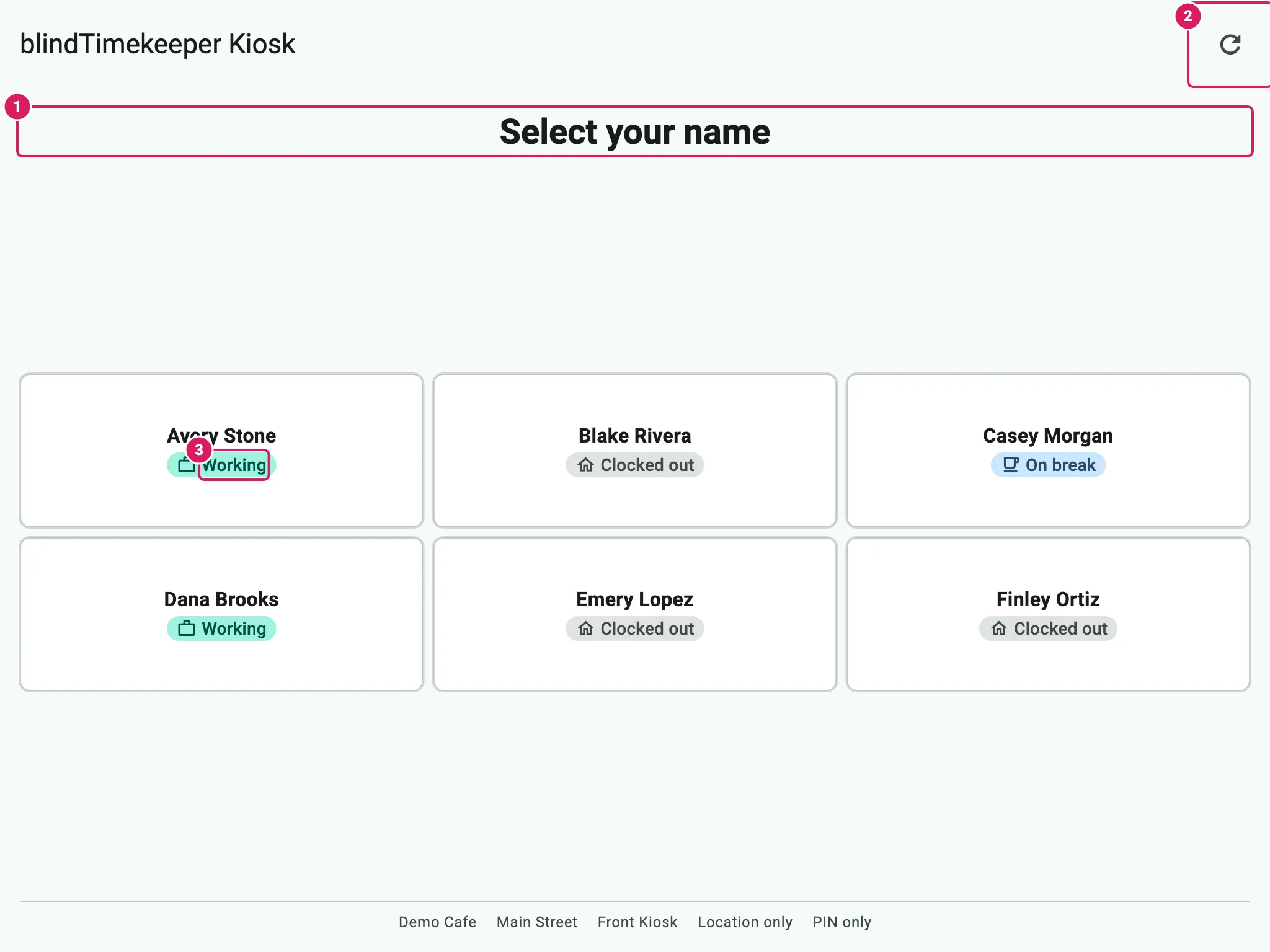
Section titled “The screen”The kiosk shows every active employee as a large card with the current status. You touch your card, choose an action and confirm with your PIN or a QR code.
Parts of the screen
Section titled “Parts of the screen”- The instruction Select your name above the cards.
- The Refresh employees button in the title bar reloads the list.
- The status on a card, for example Working.
Options and filters
Section titled “Options and filters”- With ten or more employees, a search field named Search employees appears. It matches the full name or the short name and ignores accents.
- The cards go in pages. Arrows and a page count appear only when there is more than one page.
- Which employees appear depends on the kiosk's roster: the employees of its location, or all company employees.
Actions
Section titled “Actions”- Touch your card.
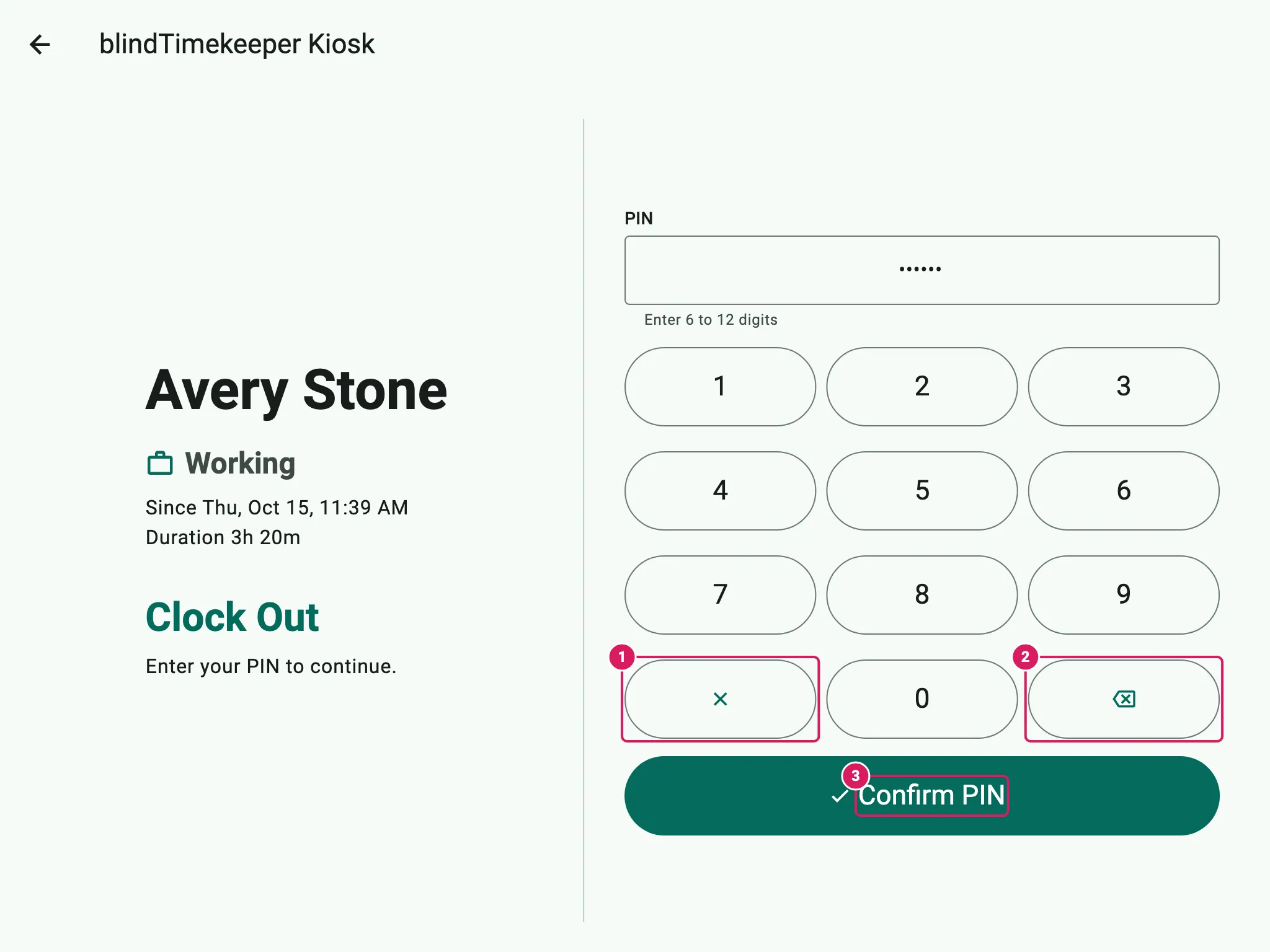
- Choose the action: Clock In, Start Break, End Break or Clock Out. Only the actions valid for your status are offered; when there is only one, the kiosk picks it for you.
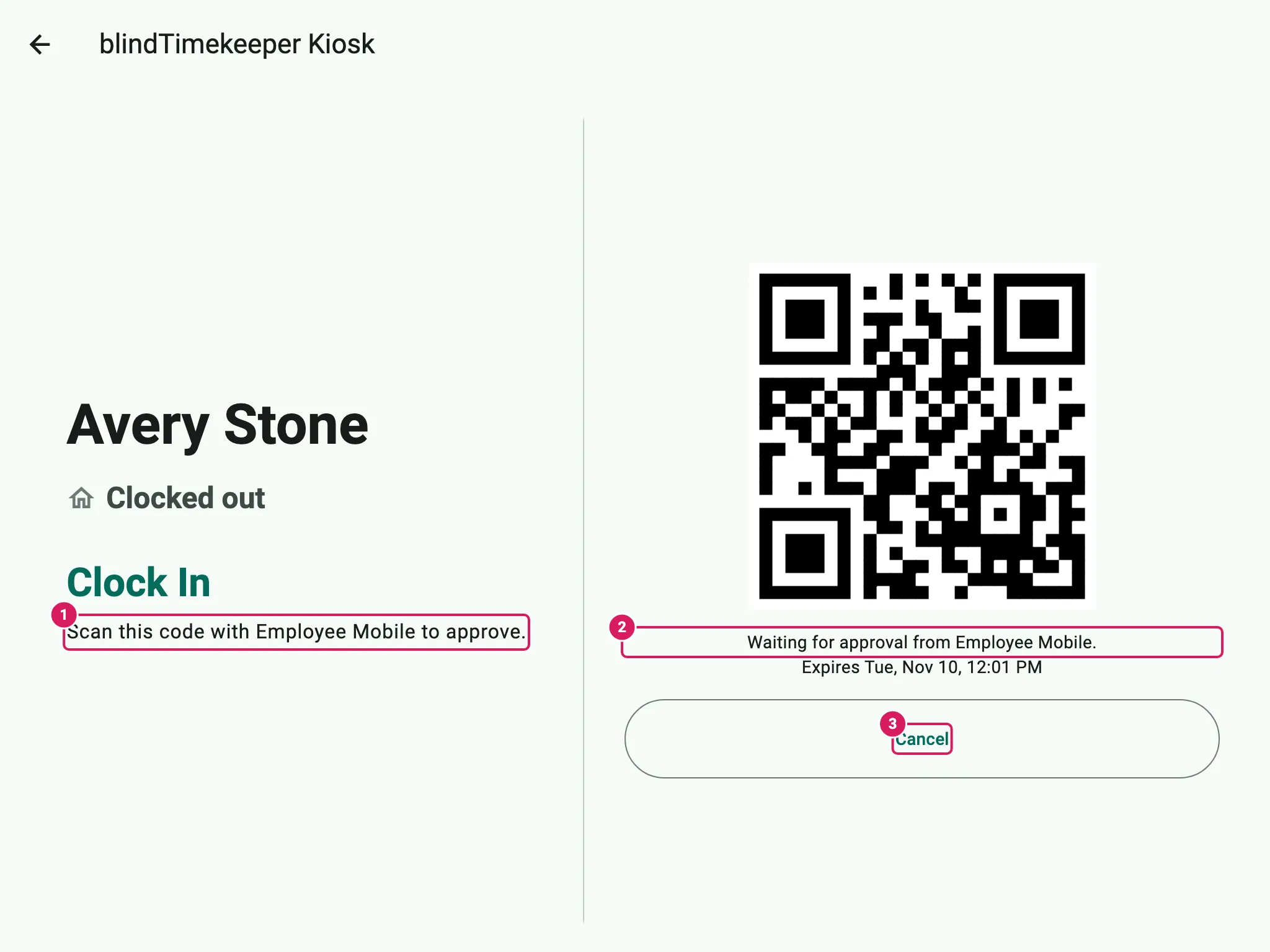
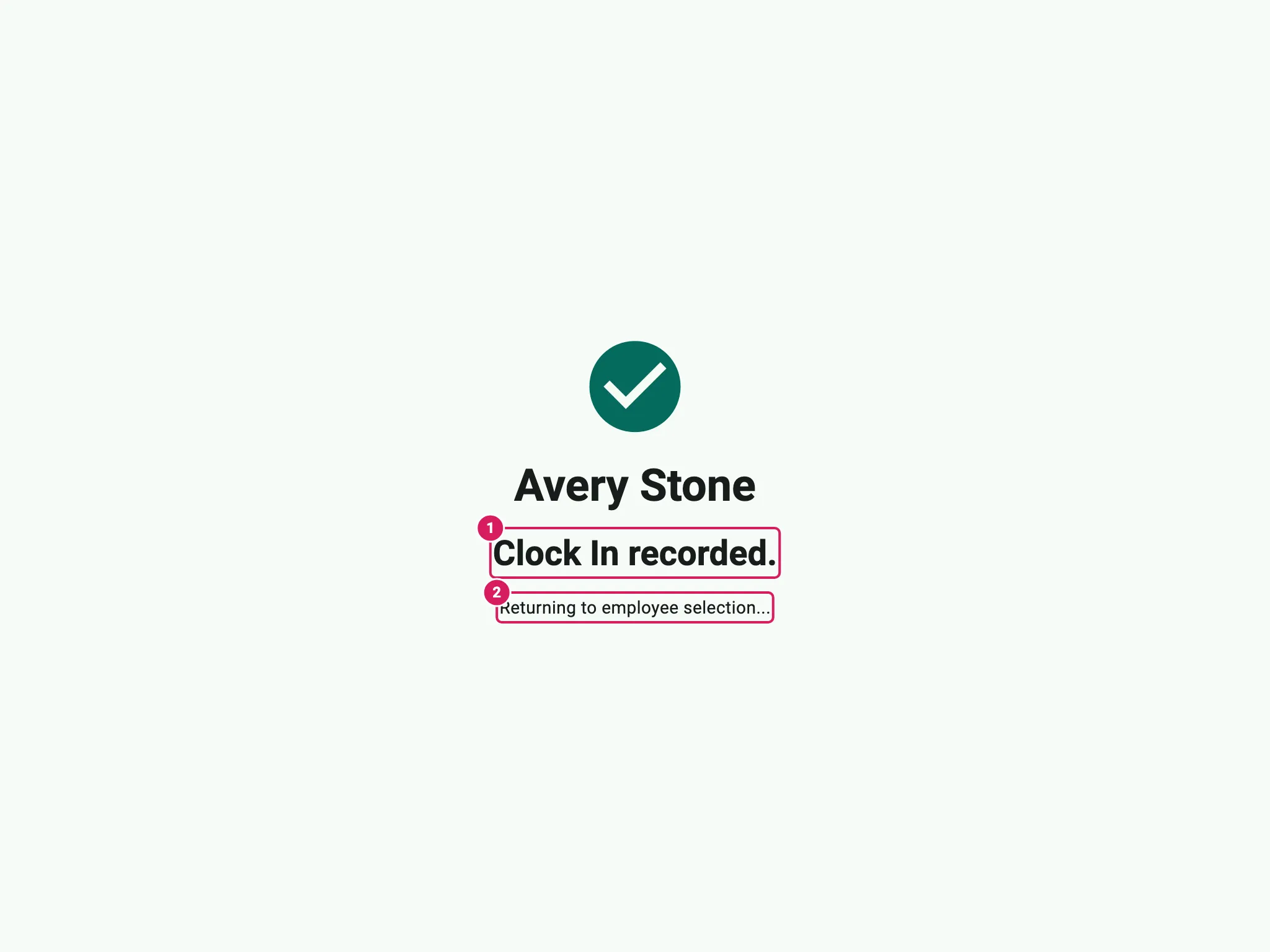
- Type your PIN and touch Confirm PIN, or approve the QR code on your phone.
Colours, icons and badges
Section titled “Colours, icons and badges”Each card says the status in words: Working, On break or Clocked out. A card whose punch still waits on the tablet adds "(not synced)". When punches wait on the tablet, a bar at the bottom counts them.
Phone and desktop
Section titled “Phone and desktop”The kiosk is made for a tablet, upright or sideways. The cards go in four columns on a wide screen, three on a medium one and two on a small one, and the number of cards per page follows.
Common questions
Section titled “Common questions”My name is not on the list. Touch Refresh employees. If it is still missing, ask your manager: the kiosk lists active employees of its roster.
The kiosk does not accept my PIN. Try again. After several wrong tries a PIN is locked and a manager can unlock it. If the whole kiosk says too many wrong PINs, wait a few minutes.
There is no connection. The kiosk may still save your punch: see the offline rule.