Kiosk setup and status
At a glance
Section titled “At a glance”These are the screens a kiosk shows when it is not ready to take punches: not connected yet, disconnected, or unable to load. A manager at the tablet uses them to connect it.
The screen
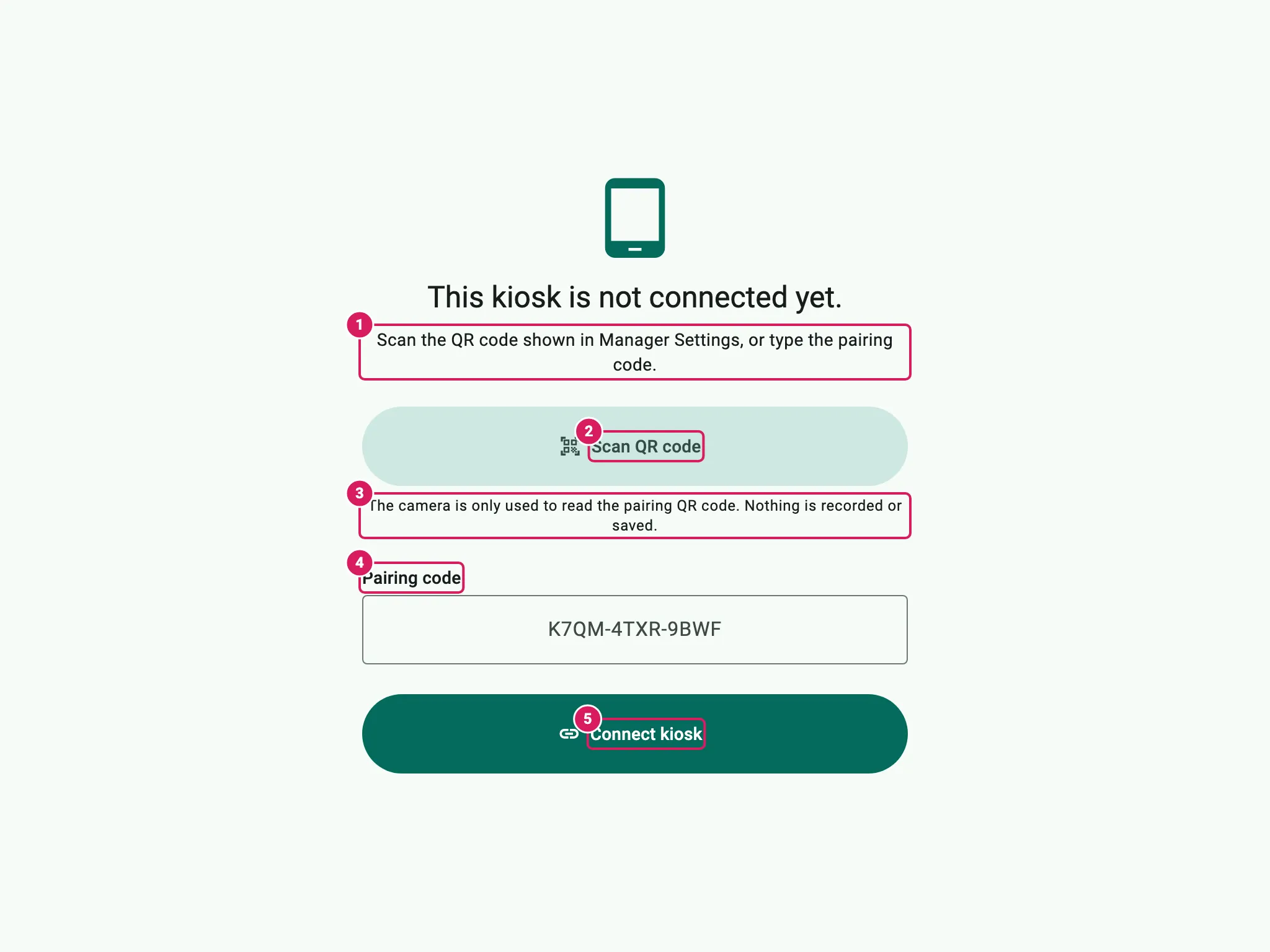
Section titled “The screen”A tablet that is not connected scans the QR code a manager shows in Settings, Kiosks, or takes the pairing code typed here.
Parts of the screen
Section titled “Parts of the screen”- The instruction Scan the QR code shown in Manager Settings, or type the pairing code.
- The Scan QR code button opens the camera. The first time, the tablet asks to allow it.
- The reason for the camera: The camera is only used to read the pairing QR code. Nothing is recorded or saved.
- The Pairing code field, where the code is typed. Capitals, spaces and the hyphen do not matter. The code carries the company, so nothing else is typed.
- The Connect kiosk button pairs the tablet.
Options and filters
Section titled “Options and filters”None. The screen has a scan button, one field and one button.
Actions
Section titled “Actions”- Touch Scan QR code and point the camera at the code, or type the code and touch Connect kiosk. If the camera is not allowed or cannot start, the scan screen says so and offers to type the code instead.
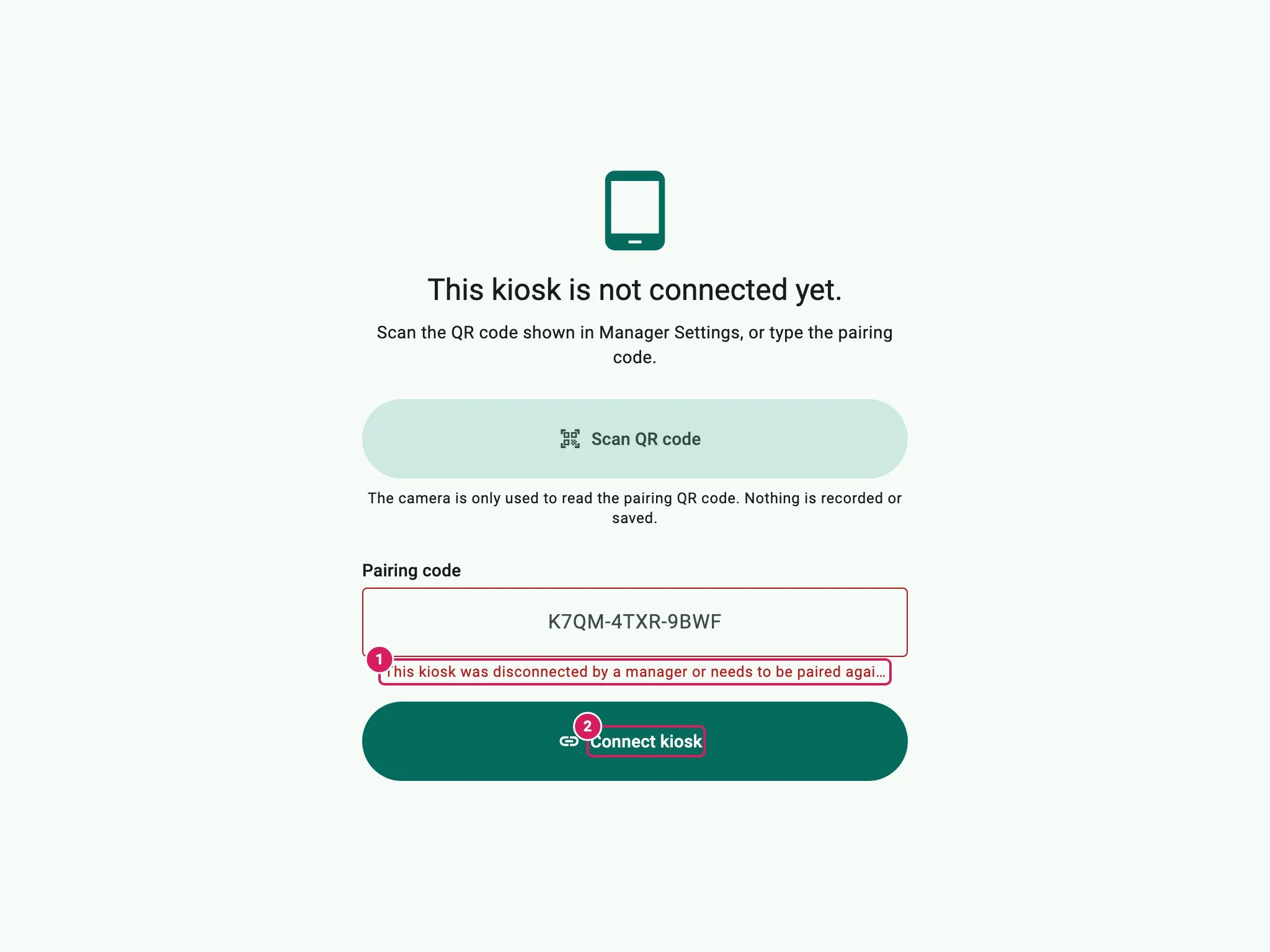
- After a manager disconnects a tablet, or when it must be paired again, it returns here with the note "This kiosk was disconnected by a manager or needs to be paired again. Enter a new pairing code."
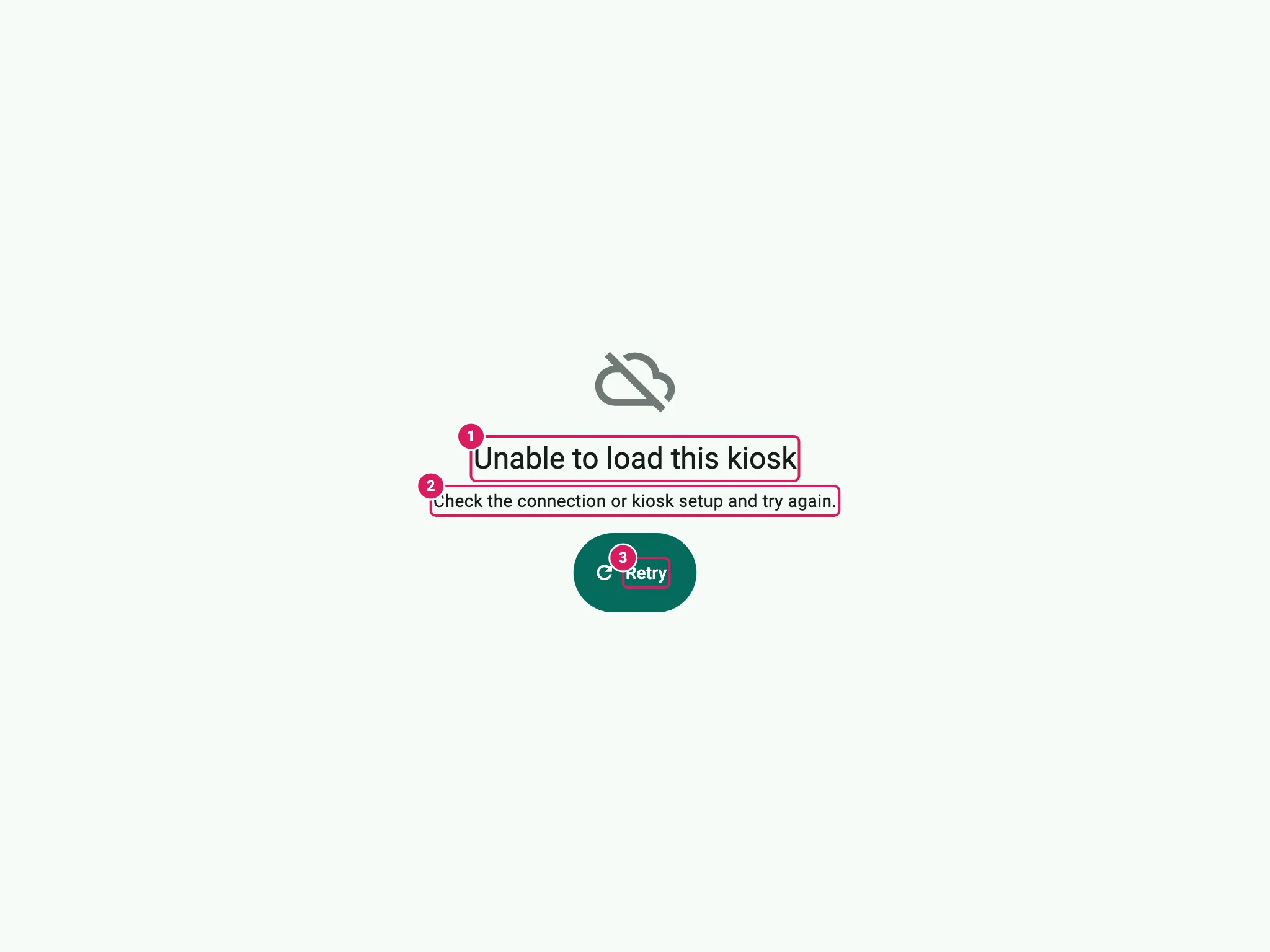
- When the kiosk cannot reach the server it says "Unable to load this kiosk" and offers Retry.
- A kiosk that is not connected can offer Reconnect kiosk, which starts again from the pairing screen.
Colours, icons and badges
Section titled “Colours, icons and badges”The messages are words, and a failed code is explained under the field. A wrong code says it was not recognized; an expired code says to ask for a new one; a used code says it was already used. After many wrong codes the screen asks you to wait a few minutes.
Phone and desktop
Section titled “Phone and desktop”This is a tablet screen. The manager sets it up with the tablet in hand.
Common questions
Section titled “Common questions”The kiosk says it needs a location. A manager must give the kiosk an active location in Settings, Kiosks before it can be paired.
Where do I get the code? In Settings, Kiosks, choose Add kiosk or open Kiosk actions on the kiosk and choose Pair kiosk or Re-pair kiosk. The window that opens shows the QR code and the code as text. It lasts 10 minutes, or 60 with Remote setup.