Change your language, email or PIN
At a glance
Section titled “At a glance”- Time: about two minutes for each change.
- Who: any employee, in the employee app.
- Difficulty: easy.
Purpose
Section titled “Purpose”Use the app in the language you prefer, keep your contact email up to date, and set or change the PIN you use at the kiosk.
Ingredients
Section titled “Ingredients”- The employee app on your phone, signed in.
- For a PIN change: your current PIN, if you have one, and a connection.
Expected result
Section titled “Expected result”The app speaks your language, your contact email is the one you gave, and you can punch at the kiosk with your new PIN.
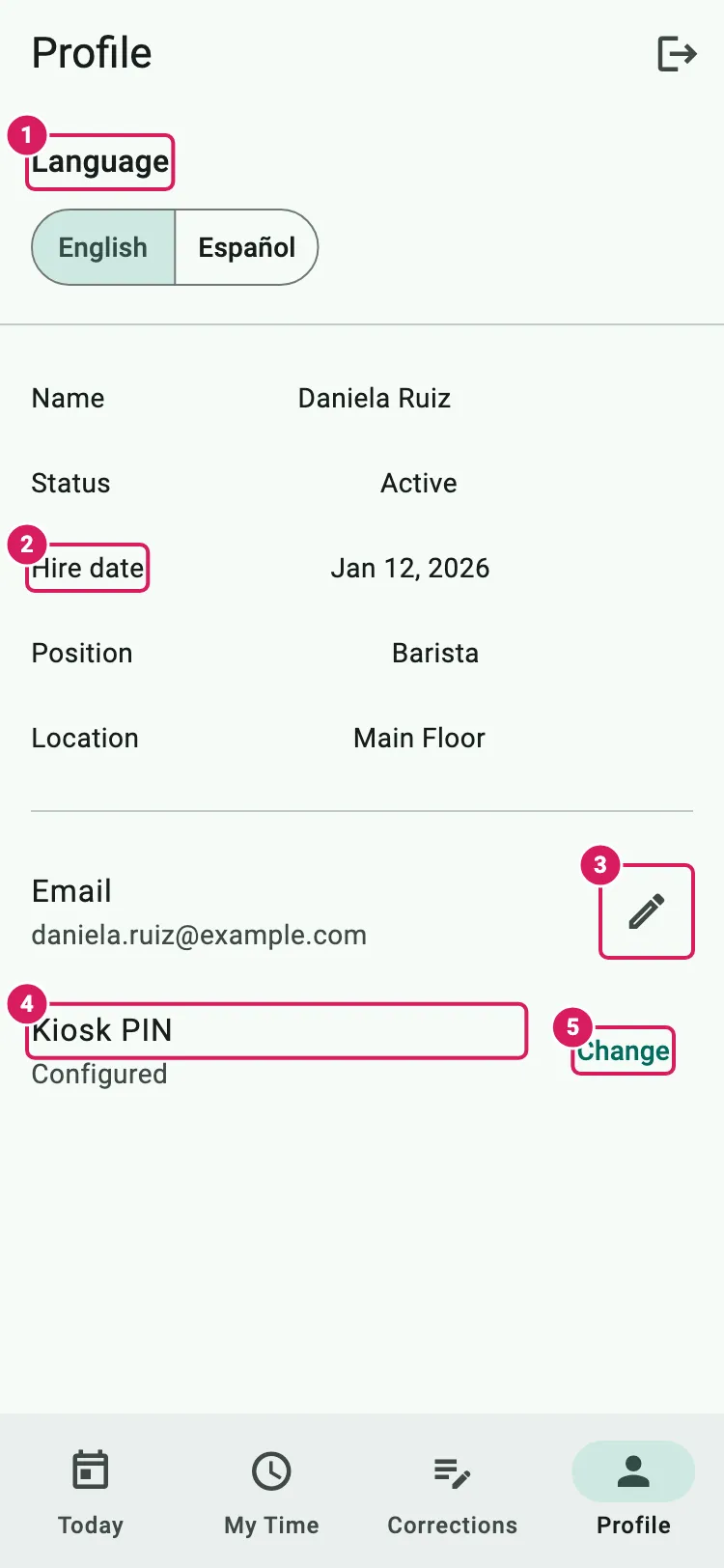
- Open the Profile tab.
- To change the language, touch it under Language. The app changes at once.
- To change your email, touch Edit email, write the email and touch Save email.
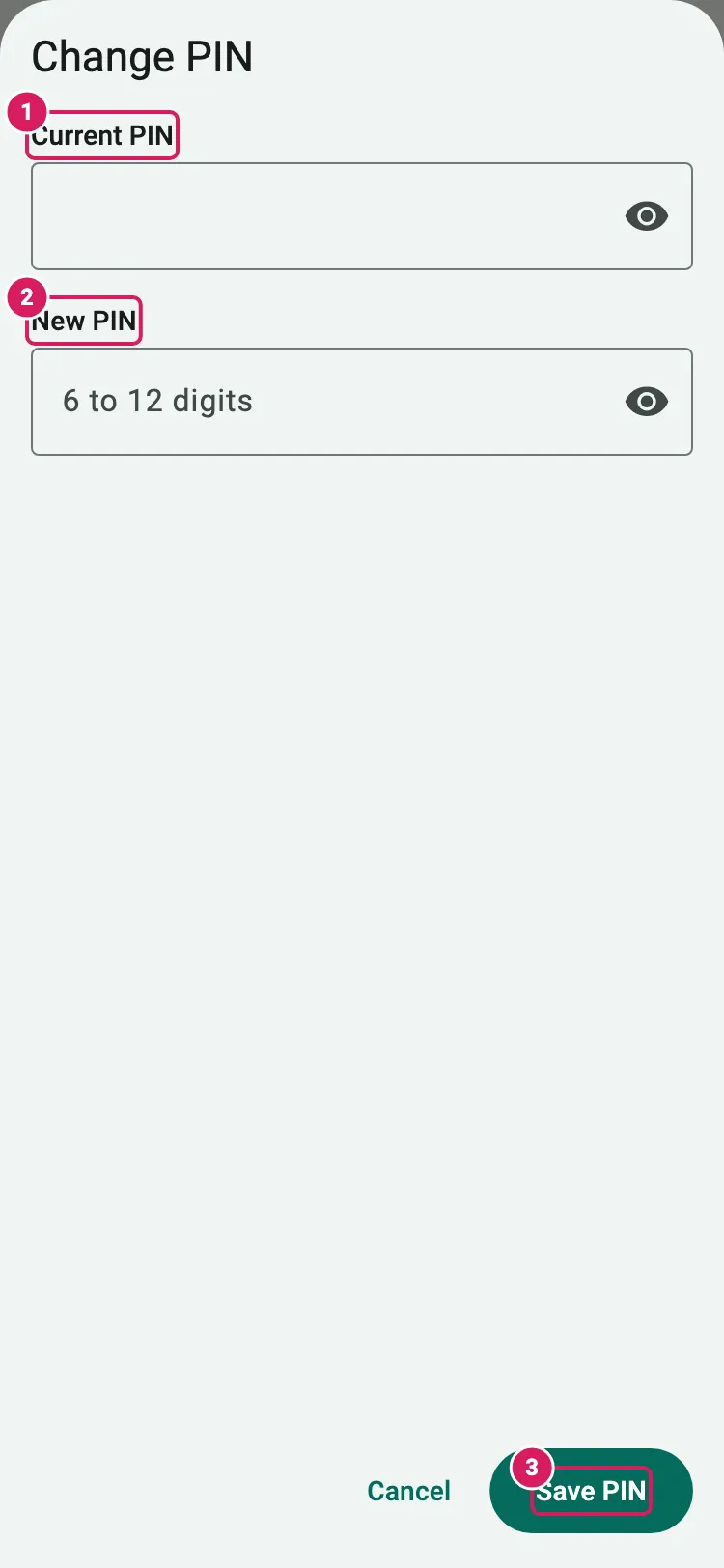
- To change your PIN, touch Change (it reads Set PIN when you have none). Write your Current PIN, then the New PIN, 6 to 12 digits, and touch Save PIN.
Check your work
Section titled “Check your work”- The language you chose is on every tab.
- Your email shows under Email.
- The Kiosk PIN line says Configured. Try the new PIN at the kiosk the next time you punch.